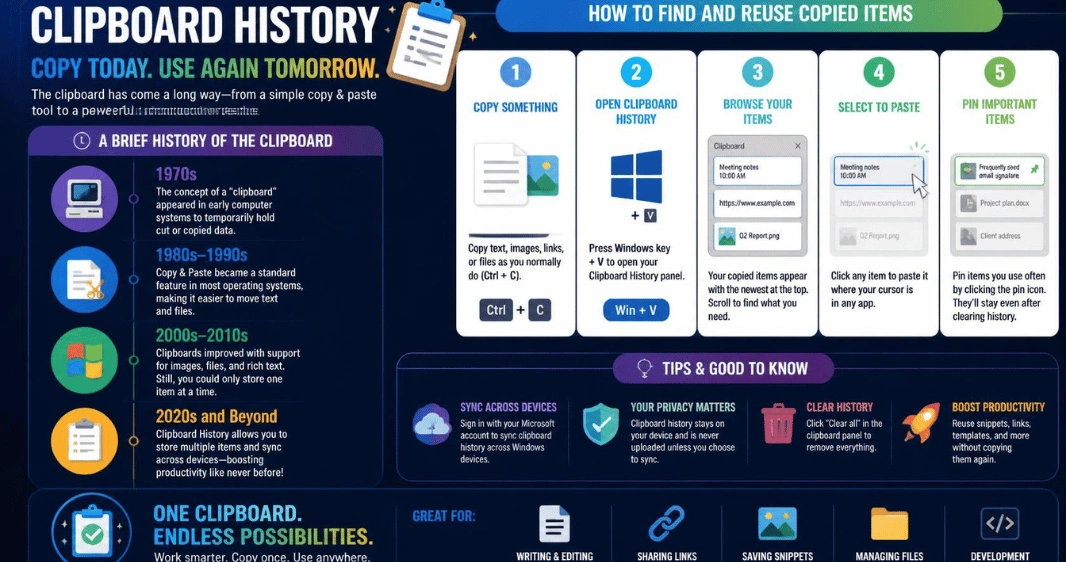
If you copied something useful and then replaced it with another item, clipboard history can help you retrieve it. Windows 11 has the clearest built-in option, but Mac, Android, iPhone, and Chromebook handle saved copied items differently. The right shortcut depends on your device.
| Device | Built-in saved-copy feature? | Fastest way to open it | Key limitation |
| Windows 11 | Yes | Win + V | Keeps up to 25 recent entries |
| Mac with macOS Tahoe 26 or later | Yes | Command-Space, then Command-4 | Requires the newer macOS feature |
| Android with Gboard | Yes, through the keyboard | Open Gboard and tap the copied-items icon | Unpinned entries are cleared after a period of inactivity |
| iPhone/iPad | No built-in history browser documented | Use normal Paste or Apple’s cross-device copy feature | The current copied item remains available only briefly |
| Chromebook | Yes | Launcher/Search + V | Holds up to five copied items |
Direct answer: On Windows 11, press Win + V to open your recent copied items. If the panel asks you to turn the feature on, enable it first. Select an item to paste, pin anything you want to keep, and clear unneeded entries from the same panel. Other devices use different methods.
What Clipboard History Does and Why It Matters
Normal copy-and-paste centers on the most recently copied item. Once you copy something new, pressing Ctrl + V pastes the newer content.A saved-copy feature changes that workflow. Instead of returning to a web page, message, or document to copy something again, you can choose an earlier entry from a list of recent items.
Clipboard history This is especially useful when you are moving several links, addresses, code snippets, notes, or images between apps. If you often work with Windows utilities, the Technoloss How-to section includes more practical guides for everyday computer tasks.
How to View and Use Copied Items on Windows 11
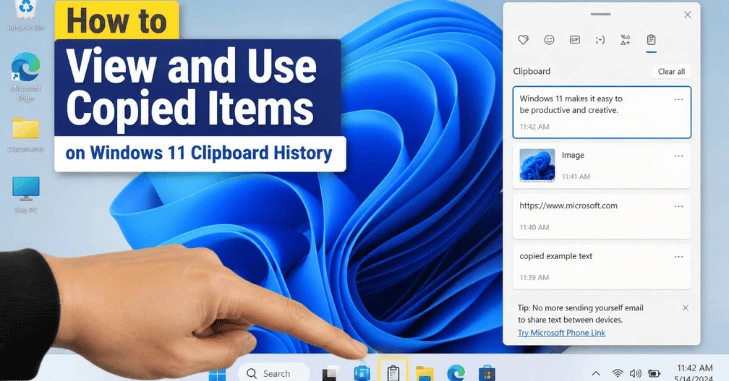
Windows 11 gives you the most direct built-in controls. Microsoft separates the standard paste shortcut from the saved-items panel. Ctrl + V pastes the newest copied item, while Win + V opens the recent-items list.
- Press Win + V. A small panel should appear near the active window.
- Select Turn on if Windows says the feature is disabled.
- Copy text, links, or supported images normally with Ctrl + C or the Copy command.
- Press Win + V again whenever you want to access an earlier item.
- Select an entry to paste it, or pin content you want to keep available.
- Delete individual entries or choose Clear all when you no longer need the saved items.
You can also enable the feature from Settings > System > Clipboard. Microsoft provides an optional cross-device setting tied to your Microsoft or work account. That setting can synchronize supported copied content between compatible Windows devices.If you like built-in PC productivity tools, Technoloss also has a Windows screen-recording guide covering another useful desktop workflow.
Windows Limits and Whether Old Copied Items Can Be Recovered
Microsoft says Windows keeps up to 25 entries in its recent-items list. Older unpinned items are removed as newer ones are added. Each supported entry can be up to 4 MB and can include text, HTML, and bitmap formats.A restart also matters. Windows clears unpinned saved entries when the PC restarts, while pinned entries remain available. That makes pinning useful for frequently reused text.
If the feature was disabled when you copied something, enabling it later cannot recreate the earlier multi-item list. Likewise, an unpinned entry that disappeared after a restart is generally not recoverable through the built-in panel. This is why a dedicated manager may make sense when you need long-term, searchable storage.
For more desktop utility topics, browse the Technoloss Software section rather than installing the first clipboard-management app you find. Any third-party tool that records everything you copy deserves a careful privacy review.
How Saved Copies Work on Mac, Android, iPhone, and Chromebook
This broad search term can be confusing because advice written for one operating system may be wrong for another.
Mac: macOS Tahoe 26 introduced recent-copy browsing in Spotlight. Press Command-Space, then Command-4, or select the appropriate Spotlight view. Apple says you can search recently copied text, images, links, and files, copy an older item again, or erase the stored history.
Android: Gboard provides a keyboard-based saved-items feature. Google says its stored text is cleared shortly after you stop using it, but pinned text is excluded from that automatic clearing. The exact behavior may differ if your phone uses a different keyboard.
iPhone and iPad: Apple’s current documentation describes ordinary copy and paste, along with Universal Clipboard for transferring content between nearby Apple devices. It says copied content remains available briefly or until it is replaced. Apple does not document an iPhone history browser comparable to the Windows or current Mac panels.
Chromebook: Google lists Search/Launcher + V as the shortcut for the copy menu. Its shortcut guide says you can keep up to five items available there.
Keep Passwords and Private Data Out of Saved Copies
Clipboard history can contain more than harmless text. Passwords, payment details, private messages, authentication codes, addresses, and work information can all pass through it.
Avoid pinning sensitive information for convenience. Clear private entries after use, and think carefully before enabling cloud synchronization on a shared or managed computer. Microsoft confirms that Windows synchronization is connected to your Microsoft or work account.
Apple also warns that sensitive information may appear when you enable the Mac history feature in Spotlight.The same caution applies to third-party managers. Before installing one, check what it records, where the data is stored, whether it syncs online, and how you can delete stored entries.
What to Try When Win + V Does Not Work.
Start by opening Settings > System > Clipboard and confirming that history is enabled. If Win + V still does nothing, restart the source app and test the feature by copying a short piece of plain text. Microsoft also notes that organizational policies can restrict the feature on managed computers.
If cross-device syncing fails, confirm that you are signed in with the same account and that syncing is enabled. Network problems can also interfere with online synchronization, so the Technoloss Wi-Fi troubleshooting guide is a useful next step when other connected features are failing too.
Make Copy and Paste Work Better for You
For most Windows 11 users, the easiest improvement is simple: press Win + V, enable the feature, and pin only the entries you genuinely reuse—clear private material when you are finished with it. If you need hundreds of searchable entries or long-term storage, compare dedicated managers carefully before giving an app continuous access to everything you copy.
Frequently Asked Questions
Press Win + V. If Windows asks you to activate the feature, choose Turn on. You can then select a recent item to paste, pin important entries, or remove items you no longer need.
Microsoft currently lists a limit of 25 entries. Older unpinned entries disappear as the list fills. Individual supported items are limited to 4 MB
Usually not if the entry was unpinned. Microsoft says a restart clears the saved list except for pinned items. Pin recurring text before shutting down if you need it later.
Ctrl+V pastes the most recent item. Win + V opens the recent items panel so that you can select an earlier copy instead.