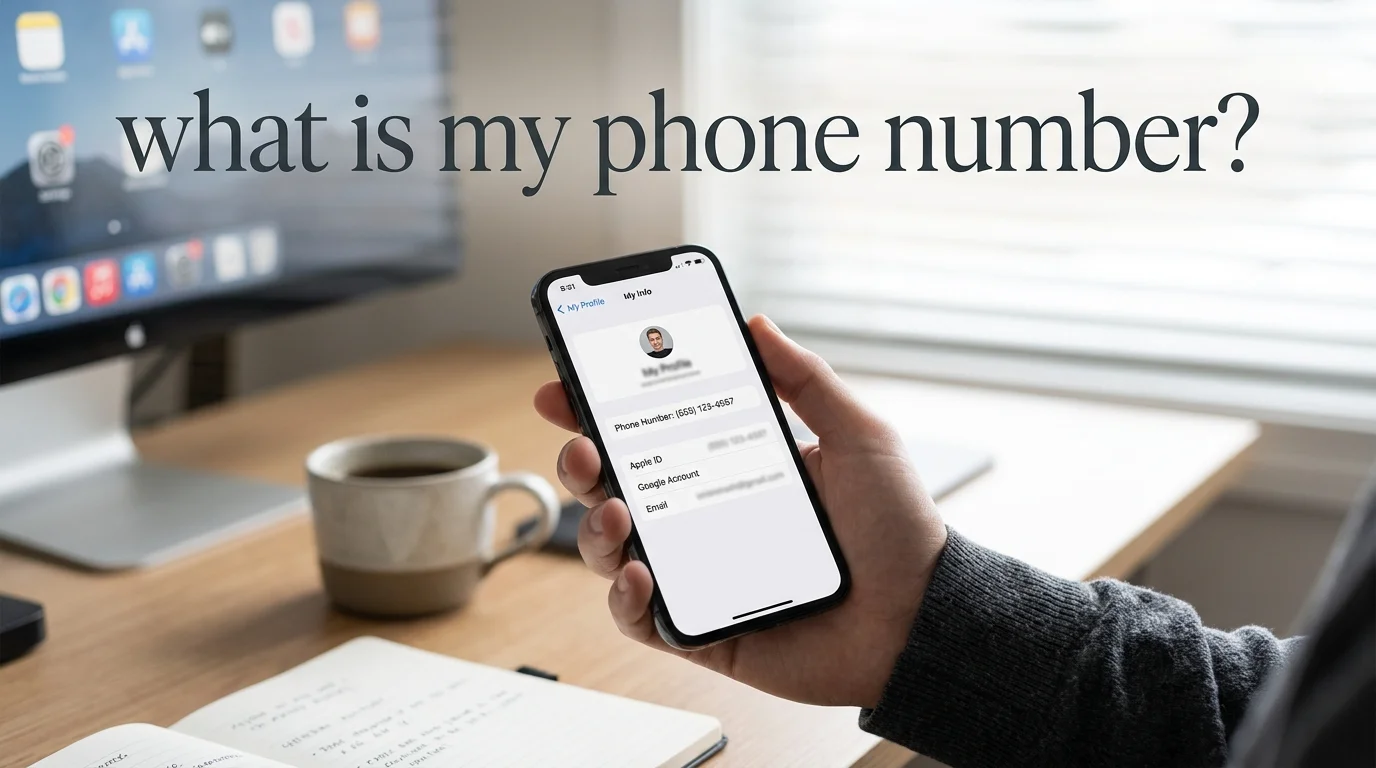
If you’re asking “what is my phone number,” you can usually find it in less than a minute without installing an app. Your device settings, carrier account, another nearby phone, or SIM information can reveal the number linked to your mobile line.
Quick answer: Your mobile number is usually visible in your phone’s settings. On iPhone, go to Settings > Cellular or Mobile Service, then open the active line. On Android, open Settings > About phone and look for SIM status. If the number is blank, call another phone, check your carrier account, or contact your mobile provider.
| Method | iPhone | Android | Best when |
| Device settings | Cellular/Mobile Service | About phone/SIM status | You need the fastest check |
| Contacts | My Card | Varies by manufacturer | Your profile is already set up |
| Call another device | Yes | Yes | Settings show nothing |
| Carrier account | Yes | Yes | You need verified account details |
| SIM/eSIM settings | Yes | Yes | You use more than one line |
| Original SIM paperwork | Sometimes | Sometimes | You recently activated a SIM |
| Carrier support | Yes | Yes | The number is blank or incorrect |
What Is My Phone Number? Start With These 7 Checks
You don’t need to try every method. Start with your settings, then move down the list if your number isn’t shown.
1. Check your iPhone settings
Open Settings and look for Cellular or Mobile Service. Your active SIM or eSIM lines should appear there. Tap the line you want to identify.
Depending on your iOS version and region, you may also find this information under the Phone settings or on your contact card. Current carrier guidance recommends the Mobile Service path on newer iPhones.
If you have two lines, check the label beside each one. You might see names such as Personal, Business, Primary, or Secondary. Apple also supports a useful shortcut in Messages. Typing “My number is” followed by a space can make your stored number appear as a predictive-text suggestion.
2. Check your Android settings
Android menu names differ among manufacturers, but the usual path is:
- Open Settings.
- Tap About phone or About device.
- Look for your number on the main screen.
- If it isn’t there, open Status or SIM status.
- Select the correct SIM if your device uses two lines.
Samsung states that many Galaxy devices display the number directly under Settings > About phone. Older models may require you to open the Status menu.
Google’s Android support community also directs users to About phone > Status > SIM status when the information is stored with the SIM.
For more everyday device instructions, browse Technoloss’s how-to guides.
3. Call or text another phone
This is often the easiest backup method. Call a family member, friend, work phone, or another device you own. Your number should appear on the other device’s caller ID if outgoing caller identification is enabled.
You can also send a text and check which number appears as the sender.
This method is useful when the Settings screen shows “Unknown” or leaves the field blank. Both carrier and Android guidance recommend calling another device as a practical alternative.
Keep one limitation in mind. The number shown on another device may not always represent the underlying mobile line if a business calling service or caller ID modification tool is involved.
Technoloss has a separate explanation of how caller ID can be changed or masked if the displayed number doesn’t match what you expected.
4. Sign in to your mobile carrier account
Your carrier account is one of the safest ways to confirm which line is yours.
Open your network provider’s website or official app. Look under sections such as:
- Account
- Lines
- Devices
- Mobile plan
- SIM management
- Profile
Your plan usually identifies each active line. This approach is especially useful for family plans or accounts with several SIMs. If your phone shows an incorrect number after a recent activation or number transfer, compare it with the line listed by your carrier. Also worth reading: Why Is My Phone Hot.
5. Check both SIMs or eSIMs
Dual-SIM phones can make this question more confusing. A device may contain a physical SIM and an eSIM, two eSIM profiles, or several stored profiles, only some of which are active. That means the first number you see may not be the line you use for calls.
On iPhone, review the lines under Cellular or Mobile Service. On Android, open your SIM manager or SIM status area and inspect each active profile. Look at the labels for calls, texts, and mobile data. The default data line isn’t necessarily the same line you use for voice calls.
You can find more mobile-device coverage in Technoloss’s Gadgets and Apps section.
6. Check your SIM packaging or activation message
If the SIM is new, look at the materials that came with it.
Some carriers include your assigned mobile number on:
- the SIM starter pack;
- an activation email;
- an activation text;
- a receipt;
- a welcome page in your account.
Be careful with the other long numbers printed on a SIM card. An ICCID identifies the SIM itself. An IMEI identifies the mobile device’s hardware. Neither is the number people normally dial to call you. Apple and Samsung list ICCID and IMEI information separately from mobile line information in their device support documentation.
7. Contact your carrier when the number is blank or incorrect
A blank field doesn’t always mean something is broken. The SIM may not have stored the line information correctly. A new activation may also require attention from the carrier. Google’s community guidance recommends contacting the network provider if the SIM status remains “Unknown.”
Before contacting support, try these basic checks:
- Restart the phone.
- Confirm that the correct SIM is enabled.
- Turn airplane mode on and off.
- Check that the device has network service.
- Review your carrier account.
- Make one outgoing test call.
Avoid experimenting with random dial codes found online. Codes vary by carrier and country, and some display device identifiers rather than your mobile number.
Can a Website Automatically Detect Your Number?

A normal website visit shouldn’t be treated as a reliable way to reveal your mobile number. Modern browsers can share limited device and browser information, but sensitive personal information is protected more tightly.
MDN classifies telephone numbers as personal information, and web-based number verification typically requires users to enter a number before the SMS verification process begins.
That means Technoloss can explain how to locate your number, but the page itself cannot safely tell every visitor which mobile line they own. Be cautious if an unfamiliar website claims it can identify your personal number without explaining its method or privacy practices.
A 30-Second Decision Tree
Use this order if you want the fastest result:
- Open Settings. Check Cellular/Mobile Service on iPhone or About phone on Android.
- Check the other SIM. Do this if your device supports dual SIM or eSIM.
- Call another phone. Read the number from caller ID.
- Open your carrier account. Confirm the active line there.
- Contact the carrier. Use this option if the device shows “Unknown” or the wrong line.
This order helps you avoid unnecessary apps and unreliable carrier codes.
Save Your Number Once You Find It
Once you confirm the correct line, add it to your own contact card and clearly label each SIM. That will make the next lookup much easier. If the device and carrier account disagree, trust the carrier’s active-line information and ask support to correct the device or SIM profile.
Frequently Asked Questions
No. This page does not know which mobile line belongs to you. Use your device settings, another phone, or your carrier account to check it.
The SIM may not contain the line information that Android expects to display. Your carrier account may still have the correct number. Contact the network provider if the field remains blank.
Open Settings > About phone. Samsung says current Galaxy devices can display the line information there. Some older devices require you to open the Status app.
Open Settings > Cellular or Mobile Service and inspect each SIM or eSIM line. Check the labels so you know which one handles your calls.
Not necessarily. “SIM number” often refers to the ICCID, which identifies the SIM card. Your mobile number is the number people use to call or text you.
First, compare it with the number shown in your carrier account. Business calling platforms, forwarding systems, and caller ID configurations can affect the number another person sees.