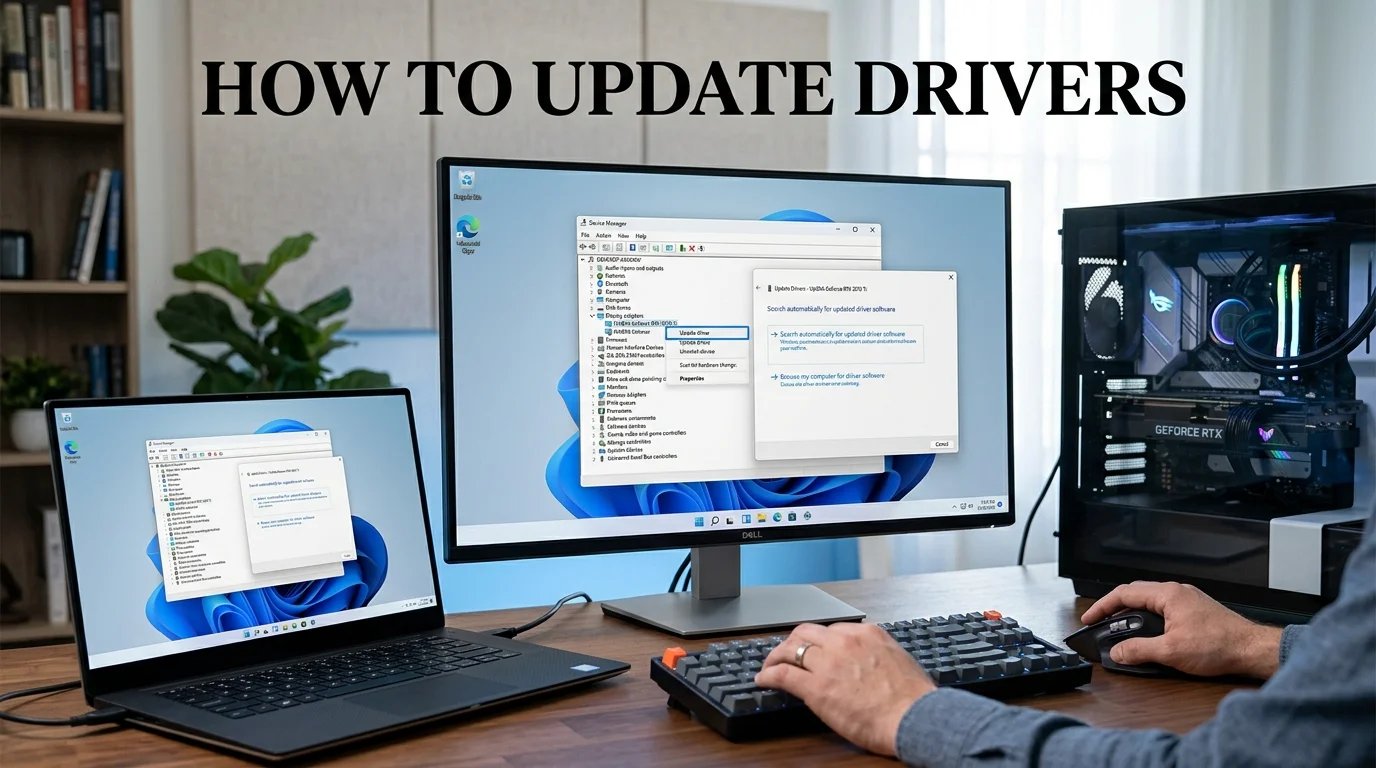
A bad Wi-Fi connection, distorted audio, poor game performance, or hardware that suddenly stops responding can all point to a driver problem. Learning how to update drivers safely can help you fix these issues without installing random software or unnecessarily replacing a working driver.
Short answer: Start with Windows Update because it provides compatible driver packages for most hardware. Use Device Manager when a specific device is misbehaving, then switch to your PC’s official support tool or the component manufacturer’s if Windows finds nothing. Restart your PC, test the device, and roll back the update if performance gets worse.
| Method | Best use | Where it gets the update | Risk level |
| Windows Update | Routine updates | Microsoft | Low |
| Device Manager | One problem device | Windows or a local package | Low |
| PC maker support page | Laptops and prebuilt PCs | Dell, HP, Lenovo, ASUS, etc. | Low |
| GPU maker tool | Graphics and gaming fixes | NVIDIA, AMD, or Intel | Low when official |
| Third-party updater | Usually unnecessary | Third-party databases | Varies |
What you’ll need before you start
You don’t need special software for most driver updates. Before changing anything, make sure you have:
- An administrator account
- A working internet connection
- Your PC or hardware model name
- A few minutes to restart and test the device
Save any open work before installing a major graphics, network, chipset, or audio update.
If your problem is specifically an unstable wireless connection, TechnoLoss’s Wi-Fi troubleshooting guide covers several checks worth trying before changing your network software.
How to Update Drivers on Windows 11 and 10
Use the following methods in order. Stop when the problem is fixed. Installing a newer package is not automatically better if the existing one works correctly.
Check Windows Update first.
On Windows 11, press Windows + I, open Windows Update, and select Check for updates.
Next, open Advanced options > Optional updates. If a Driver updates section appears, review the available items and install the ones related to your hardware.
Windows automatically provides many recommended device packages. Optional updates are not installed automatically, so you need to select them yourself. Microsoft recommends this route for most hardware. Restart your computer after installation. This gives Windows a clean opportunity to load the new package.
Update one device through Device Manager.
Right-click the Start button and choose Device Manager.
Expand the category that contains the problem device. For example, use Display adapters for graphics or Network adapters for Wi-Fi and Ethernet.
Right-click the device, select Update driver, and then choose Search automatically for drivers.
Windows will search for a compatible package. If it cannot find anything newer, it may direct you back to Windows Update.
Device Manager is most useful when one component is failing. It is less practical for checking an entire PC one device at a time.
Use your PC manufacturer’s support page for model-specific hardware.
Laptop and prebuilt PC manufacturers often customize software for touchpads, audio chips, power management, wireless adapters, and other components.
Find the support page for your exact model. Enter the model or service identifier, choose your Windows version, and download the recommended package.
Dell, for example, recommends using its own support downloads for hardware that came preinstalled in a Dell computer. Its support tools can also scan the machine and show available updates.
Never guess the model or install a package intended for similar-looking hardware.
For more PC component coverage, browse TechnoLoss’s hardware guides and articles.
Use the official GPU utility when you need a graphics update.
Graphics hardware often receives updates more frequently than other PC components. These releases may add game support, fix display bugs, or address application compatibility issues.
NVIDIA users can use the NVIDIA app to find and install current GeForce Game Ready or Studio releases. NVIDIA describes the app as its tool for keeping compatible GeForce systems up to date.
AMD users can check AMD Software: Adrenalin Edition. Its update manager can display available software and download supported Radeon packages. Intel provides Intel Driver & Support Assistant, which scans supported Intel hardware and lists compatible updates.
On laptops, check the computer manufacturer’s support page before replacing a customized graphics package with a generic one. AMD specifically recommends OEM-provided software for systems that depend on vendor-specific features.
TechnoLoss’s software section is also useful for broader guidance on Windows software and maintenance.
How to check whether the update worked
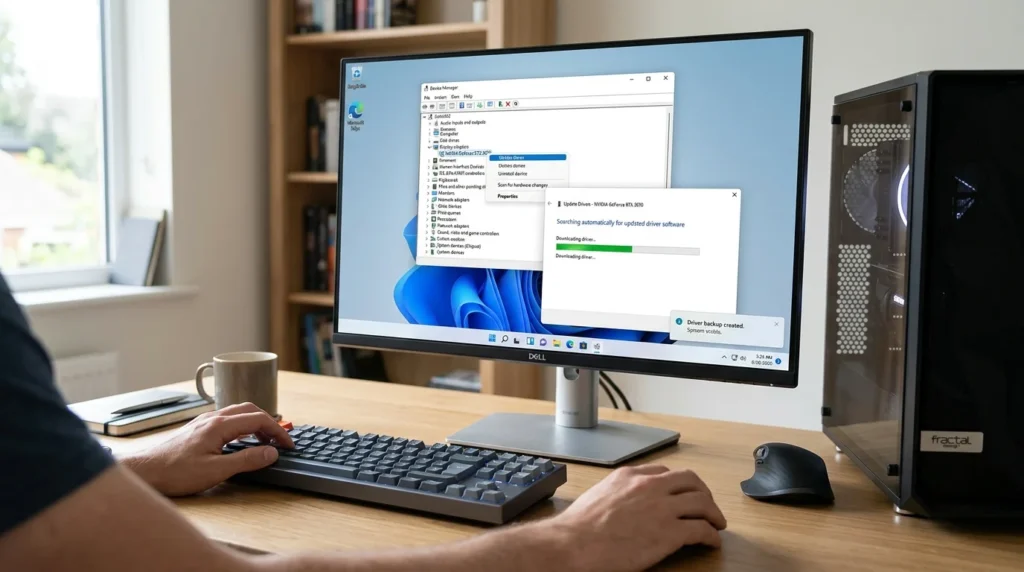
Don’t assume the installation succeeded just because the installer closed without showing an error.
Open Device Manager, right-click the updated component, and choose Properties > Driver. Check the provider and version.
Then test the task that caused the original problem.
For example:
- Reconnect to Wi-Fi and perform a normal browsing test.
- Play audio through the affected speakers or headphones.
- Open the game or program that had graphics problems.
- Test the affected USB, Bluetooth, printer, or other device.
A successful update should solve a specific problem, add needed compatibility, or leave the system working normally. If you maintain several workplace computers, TechnoLoss also has advice on keeping business technology running smoothly.
What to do if a new driver causes problems
A newer release can occasionally cause crashes, flickering, missing audio, connection failures, or lower performance.
Windows includes a rollback option for this situation.
- Open Device Manager.
- Right-click the affected component.
- Select Properties.
- Open the Driver tab.
- Choose Roll Back Driver.
- Select a reason and confirm.
- Restart the PC.
Microsoft notes that rolling back can help when a problem begins after a recent Windows or device update. Administrator permission is required. If the rollback button is unavailable, download the previous compatible release from the official support page of the PC or component manufacturer.
Should you update every driver on your PC?
No. You don’t need to replace every working package whenever a newer version appears.
A targeted update makes sense when:
- A device has stopped working correctly.
- Windows shows a device error.
- You installed new hardware.
- You reinstalled or upgraded Windows.
- A security or compatibility fix applies to your hardware.
- A graphics release supports a game or application you use.
Dell’s current support guidance similarly recommends updates after operating system changes, hardware problems, factory resets, and specific device errors.
Avoid unknown “one-click” updater websites. Microsoft tells users to obtain manual packages from the device manufacturer’s website, while Dell warns that using unknown sources can cause crashes, startup problems, or exposure to malware.
A 2026 note for Windows 10 users
The update menus described above may still function on Windows 10 systems with supported hardware, but the operating system itself has reached the end of support.
Microsoft ended standard Windows 10 support on October 14, 2025. The company recommends moving eligible machines to Windows 11 or using an applicable Extended Security Updates option during the transition.
A current hardware package does not make an unsupported operating system fully secure. Treat the operating system upgrade and the device update as separate tasks.
Your next step
Start with Settings > Windows Update > Check for updates. Then check Advanced options > Optional updates.
If you are fixing one specific device, note its exact model before changing anything. Install one relevant update, restart the PC, and test the hardware before making any further changes. That approach makes it much easier to identify and reverse a bad update.
Frequently asked questions
Look for hardware errors, crashes, missing sound, network problems, graphics glitches, or compatibility issues after installing new hardware or software. You can also check Windows Update and your manufacturer’s support page.
Start with Windows Update for a stable, compatible package. For gaming fixes or newer GPU features, use the official NVIDIA, AMD, or Intel utility that is compatible with your hardware.
Yes. Windows Update automatically provides many recommended packages. Some optional device updates require you to open the Optional updates page and select them yourself.
Use Windows Update first. For one component, use Device Manager. If neither option finds what you need, download the correct package directly from the PC or component manufacturer’s official support site.