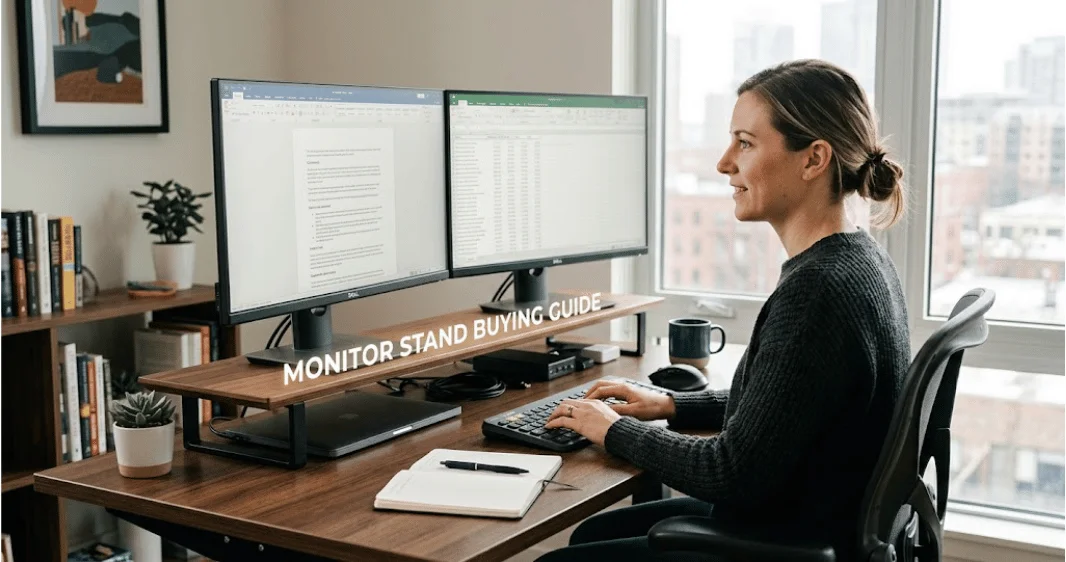
Shopping for a monitor stand gets easier once you know which problem you need to solve. A basic riser raises your screen and can add storage underneath. Adjustable VESA models offer more positioning control, while monitor arms free up more desk space.
| What to check | Practical guidance |
| Main purpose | Raise the display, improve positioning, or recover desk space |
| Common types | Fixed riser, adjustable riser, freestanding VESA mount, monitor arm |
| Screen position | Aim for the top of the display to sit around eye level |
| Viewing distance | OSHA guidance lists roughly 18 to 30 inches |
| Essential measurements | Required lift, base footprint, monitor weight, desk depth |
| VESA required? | Only for mounting systems that attach to the monitor |
| Best arm alternative | A riser if you want a simple setup and useful storage |
Quick answer: Choose a desktop riser if you need a simple height boost, extra storage, and no installation. Choose an adjustable VESA model when you want tilt or swivel without clamping anything to your desk. Pick a monitor arm when surface space and frequent repositioning matter most. Check screen weight, base footprint, and usable height before buying.
What a Monitor Riser Actually Does
A desktop riser places your display higher without changing the monitor itself. Lenovo describes this type of accessory as a way to raise a screen to a more comfortable viewing height. The space below can also hold a keyboard, notebook, controller, or other small items.
The ergonomic benefit depends on getting the height right. OSHA guidance recommends placing the top of a computer screen approximately at eye level. It also provides a typical viewing distance range of about 18 to 30 inches.
That means buying the tallest option isn’t automatically better. Your chair height, screen size, desk height, and sitting posture all affect the final position.
A useful way to measure your required lift is:
- Sit in your normal working position.
- Keep your head upright rather than tilting it toward the screen.
- Check how far the top edge of the display sits below eye level.
- Use that gap as a starting point for choosing the riser’s height.
- Confirm that the new position still leaves a comfortable viewing distance.
This approach is more useful than choosing based on appearance alone.
Monitor Stand Types Compared
Not every desktop support works the same way. Some are simple shelves, while others replace the original factory base.
| Type | Best for | Adjustment | Desk-space effect | VESA needed |
| Fixed riser | Simple height correction | None | Adds storage underneath | No |
| Adjustable riser | Fine-tuning screen height | Low to medium | Adds some storage | No |
| Freestanding VESA base | More screen control without a desk clamp | Medium | Depends on base size | Yes |
| Monitor arm | Frequent movement and maximum open space | High | Clears much of the surface | Usually yes |
Current comparisons generally characterize risers as the simpler, less expensive option. Arms offer more control over height, distance, tilt, swivel, and rotation. They can also leave more usable space beneath the screen.
Fixed or Adjustable Riser
Pros
- Quick to set up
- No drilling or clamps
- Often creates storage below the screen
- Easy to move between desks
Watch for
- A fixed model can put the display too high.
- A wide factory base may not fit on the top platform.
- Some designs take up more desk depth than expected.
A riser makes the most sense when your current screen position is already close to correct. You may only need a few extra inches.
Freestanding VESA Base
A freestanding VESA model attaches directly to compatible mounting holes on the back of the display. It can replace a large original base while offering height, tilt, or swivel adjustment.
VESA mounting standards are designed to provide common interfaces for attaching flat displays to mounting hardware. That makes the mounting pattern an important compatibility check before purchase.
Pros
- More adjustment than a shelf-style riser
- Can replace a bulky original monitor base
- Doesn’t require a clamp on the desk edge
Watch for
- Your display needs a compatible mounting pattern.
- The mount must support the monitor’s weight.
- Large screens need a base wide enough to remain stable.
Monitor Arm
Most monitor arms attach to a desk with a clamp or grommet. An arm lets you change the screen’s height, depth, angle, and, in some cases, orientation.
Pros
- Frees substantial surface space
- Useful for sit-stand desks
- Makes frequent repositioning easier
- Works well for many multi-screen layouts
Watch for
- Installation takes more effort.
- Your desk must support the mounting method.
- Some thin or fragile desktops need extra reinforcement.
A recent comparison from Progressive Desk similarly positions arms as the more adjustable choice. Traditional desktop supports favor simplicity, stability, portability, and easier installation.
How to Choose the Right Size and Height
Before buying a monitor stand, use a simple three-number fit check: lift, footprint, and load.
1. Measure the Lift You Need
Start with the vertical distance between your current screen position and the target position. Avoid adding height simply because a taller accessory looks more substantial.
An adjustable model gives you more room for error. A fixed riser can still work well when you’ve measured first.
2. Measure the Monitor Base
Screen size alone doesn’t tell you whether a riser will fit.
Measure:
- The width of the factory base
- The front-to-back depth
- The position of any feet or legs
- The space needed for cables behind the display
Gaming monitors often use wide V-shaped feet. A platform that looks wide enough for the panel may still be too shallow for the base.
3. Check the Weight Rating
The product’s rated load should comfortably support everything placed on it.
For a wide shelf holding two displays, account for the combined weight of both monitors and their factory bases. Don’t assume a large-looking shelf can safely support a heavy ultrawide screen.
You can find more PC-accessory coverage in TechnoLoss’s hardware guides.
Stability and Desk Safety Matter as Much as Height

A desktop accessory should feel stable when you type, adjust the screen, or bump the desk.
Look for a wide contact area, non-slip feet, and materials that don’t flex under the expected load. These details become more important with a large display.
Desk depth matters too. A deep platform can move the screen closer to your face if your desk is already narrow.
Cable routing also deserves attention before you order. Leave enough clearance behind the screen for power, HDMI, DisplayPort, USB, or dock connections.
For related setup and device coverage, TechnoLoss also maintains a broader technology section.
Riser vs Monitor Arm: Which Is Better?
Neither option is better for every desk.
Choose a riser when:
- You use one screen in a mostly fixed position.
- You need only a small increase in height.
- You want storage under the display.
- You don’t want to clamp hardware to the desk.
- You move your setup between locations.
Choose a monitor arm when:
- You frequently change screen height or distance.
- You switch between sitting and standing.
- Your desk has little usable surface area.
- A large factory base crowds your keyboard or mouse.
- You use two screens that need independent positioning.
Tom’s Guide notes the same fundamental tradeoff. Arms can save surface space, while traditional desktop supports can provide useful storage below the screen.
Verdict
For most single-screen users who only need a modest height correction, a riser is the sensible first choice. It is simple, portable, and doesn’t require mounting hardware.
An arm becomes the stronger choice when your screen position changes throughout the day. It also makes sense when reclaiming desktop space matters more than having a shelf beneath the display.
Gaming, Dual Screens, and Ultrawide Setups
Gaming doesn’t require a special type of support. Stability, proper screen positioning, and enough room for the monitor’s original feet matter more than the product label.
A wide gaming base can consume valuable mouse space on a shallow desk. In that situation, a VESA base or arm may solve more problems than a basic shelf.
Dual-screen setups require another check: both original bases must fit completely on the surface. A dual-arm or multi-monitor VESA mount may be cleaner when independent alignment is required.
Ultrawide users should pay close attention to weight and depth. A heavy, curved display imposes different stability requirements than a small office screen.
TechnoLoss readers building gaming setups can also browse the site’s gaming coverage. The guide to using a laptop screen for PS4 is another useful display-related resource.
Common Buying Mistakes
Most bad purchases come from skipping measurements rather than choosing the wrong brand.
Avoid these mistakes:
- Buying by screen size alone. The factory base dimensions often matter more.
- Ignoring desk depth. A deep riser may place the screen too close.
- Choosing too much height. Raising the display beyond eye level can create a new positioning problem.
- Forgetting the load rating. This matters more with dual or ultrawide displays.
- Confusing a riser with a VESA mount. A shelf needs no mounting holes, while a VESA system usually does.
- Buying an arm without checking the desk. Confirm edge thickness, clamp clearance, and desktop construction first.
- Ignoring cable clearance. Ports can become difficult to reach after the screen moves.
The easiest way to avoid these problems is to measure before comparing products.
Choose Based on Your Desk, Not the Product Photo
Measure three things before you buy: the lift you need, the footprint of your current base, and the weight the accessory must support.
If those measurements suit a basic riser, you probably don’t need a more complicated solution. If the factory base takes up too much space or your viewing position changes often, consider a VESA base or a monitor arm instead.
That short measurement check can prevent the most common setup problems and leave you with a desk that works better for both daily work and gaming.
Frequently Asked Questions
A riser raises the display to a more suitable viewing position and can create storage underneath. It is useful when your screen is too low, but you don’t need extensive adjustment.
There is no universal height. Start by sitting normally and measuring the distance between your current screen position and a target at which the display’s top edge is roughly at eye level. OSHA’s workstation guidance supports that general screen-positioning approach.
Yes, if it supports the screen securely and places it at a comfortable height. Check the depth and width carefully, as gaming monitors often have large factory bases.
Not for a simple desktop riser. You need compatible mounting holes when the display attaches directly to a VESA stand or arm. Check both the mounting pattern and supported weight.
A riser is often better for a fixed, single-screen setup and simple height correction. An arm is better when you need frequent movement, independent positioning, or more open desk space.