If you’re asking what GPU do I have, Windows can usually tell you within seconds. Open Task Manager, select Performance, then choose GPU to see the model name. You can also use Device Manager, Settings, DirectX Diagnostic Tool, or your computer’s manufacturer information.
Quick answer: Press Ctrl + Shift + Esc on Windows, choose Performance, and select GPU. The graphics card name appears near the top of the window. Mac users can check About settings, while Linux users can identify graphics hardware with system tools such as lspci.
GPU Check Methods at a Glance
| Method | Best for | Shows exact model? | Shows extra details? |
|---|---|---|---|
| Task Manager | Windows 11 and 10 | Yes | Usage and memory |
| Device Manager | Windows PCs | Yes | Basic device details |
| Windows Settings | Quick Windows check | Usually | Display information |
| DirectX Diagnostic Tool | More detailed Windows check | Yes | Display and driver details |
| About This Mac | Mac computers | Yes or chip family | System information |
| lspci | Linux computers | Yes | PCI hardware details |
| Browser detector | Fast online estimate | Sometimes | Limited browser-visible data |
Key Takeaways
* Task Manager is the easiest starting point for most Windows users. * Device Manager can reveal multiple graphics adapters on dual-graphics laptops. * Browser tools may report the adapter currently serving the browser. * A browser cannot reliably expose every hardware detail, including exact VRAM. * Mac and Linux users can identify graphics hardware without installing third-party software. * Knowing the exact model helps with games, drivers, editing software, and upgrades.
How to Check What GPU Do I Have on Windows
Windows offers several built-in methods, so you don’t need extra software. Start with Task Manager, which combines identification with live performance information. Try another method if the displayed name looks incomplete.
1. Check Your Graphics Card in Task Manager
Press Ctrl + Shift + Esc to open Task Manager. Select Performance, then choose the graphics entry from the left sidebar. Windows displays the adapter’s name in the upper area of that panel.
You can also see live utilization and graphics memory information there. This makes Task Manager useful when checking performance during games or creative applications. Systems with several adapters may show entries such as GPU 0 and GPU 1.
2. Use Device Manager
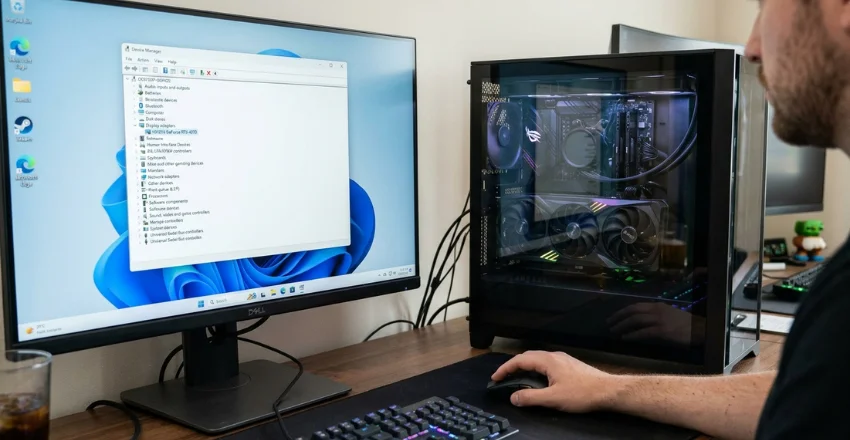
Right-click the Start button and choose Device Manager. Expand Display adapters to see every graphics device Windows recognizes. A laptop may list both integrated and dedicated graphics.
Seeing two adapters does not mean something is wrong. Many laptops use lower-power graphics for normal desktop work and stronger hardware for demanding applications. This arrangement can improve battery life without removing higher-performance graphics.
If the graphics device causes flickering or black screens, TechnoLoss has a graphics driver reset guide with Windows recovery steps. Start with simple fixes before reinstalling anything. Driver problems and hardware identification are separate issues.
3. Check Windows Display Settings
Open Settings, go to System, then select Display. Open Advanced display under the related display settings. Windows can show the graphics adapter associated with the selected display.
This method is useful on computers connected to several monitors. Different outputs can sometimes map to different graphics paths. Task Manager is still better if you want performance and memory information too.
4. Run the DirectX Diagnostic Tool
Press Windows + R, type dxdiag, and press Enter. Open the Display or related graphics tab after the diagnostic window loads. Look for the device name and manufacturer information.
This approach is useful when troubleshooting a game or graphics application. It can provide more context than a simple device list. You can compare that information with requirements published by a game or software developer.
5. Check the NVIDIA, AMD, or Intel Software
Your computer may have graphics software from NVIDIA, AMD, or Intel installed. Opening the official application can help identify the product family and current software package. This is particularly useful when you plan to update graphics software.
Avoid installing random driver utilities simply to identify your hardware. Windows already provides enough information for most users. TechnoLoss also explains how to update Windows drivers safely after you identify the correct hardware.
How to Check a Graphics Card on a Mac
Open the Apple menu and choose System Settings > General > About on current macOS versions. Apple lists the chip on Apple silicon systems and graphics information on supported Intel Macs. The System Report option provides a deeper technical listing.
Some older MacBook Pro models can contain integrated and discrete graphics processors. Apple documents that About This Mac can show which graphics processors are present or active on supported models. A higher-performance processor uses more energy than integrated graphics.
Apple silicon works differently from a traditional desktop graphics-card setup. Apple integrates graphics capability into its system-on-chip architecture rather than using a typical removable PC card. Check the specific Mac chip when comparing software requirements.
How to Check Graphics Hardware on Linux
Linux users can inspect PCI devices through the terminal. One common command is lspci, which lists hardware connected through PCI buses. The utility can reveal graphics controllers alongside other system components.
Try lspci | grep -Ei “vga|3d|display” to narrow the output. Your distribution and installed driver tools may provide additional information. Vendor utilities can also show deeper performance details when supported.
Graphical system-information applications provide another option for beginners. Their exact names differ between Linux distributions and desktop environments. The terminal approach remains widely useful because it doesn’t depend on a specific desktop interface.
Can a Website Tell Me Which Graphics Card I Have?
A browser-based checker can often identify the graphics renderer exposed through WebGL. On some Windows systems, that value can closely match the installed graphics model. Privacy settings, drivers, and browser behavior can make the result less specific.
A browser also may report the graphics adapter it currently uses instead of every adapter installed. This matters on laptops containing integrated and dedicated graphics. The operating system remains the better source when you need a definitive hardware inventory.
Browser pages also have limited access to low-level hardware information. They generally cannot directly read exact video memory, clock speeds, temperatures, or every physical specification. Use operating-system or manufacturer tools when those details matter.
Why Does My Laptop Show Two Graphics Cards?
Many laptops include integrated graphics alongside a dedicated graphics processor. Integrated graphics handle lighter tasks while consuming less power. Dedicated graphics can take over for games, editing, rendering, and other demanding workloads.
You might therefore see two entries inside Task Manager or Device Manager. Windows can assign different applications to different processors depending on power and performance needs. Seeing the integrated option while browsing does not prove the dedicated card is missing.
This distinction matters when checking game requirements. Compare the game’s requirements with your higher-performance dedicated model when the game uses it. TechnoLoss’s gaming coverage can help with related PC gaming topics.
How to Check How Much VRAM You Have
On Windows, open Task Manager and select Performance > GPU. Look for dedicated graphics memory and shared graphics memory values. Dedicated memory is especially relevant for discrete cards.
Do not assume the largest displayed memory number is dedicated VRAM. Integrated processors often borrow system memory instead of carrying separate video memory. Dedicated and shared memory therefore describe different resources.
VRAM requirements matter for modern games, 3D rendering, video editing, and some local AI workloads. Compare your dedicated memory with the application’s published requirements. Model name alone may not reveal every memory configuration.
How to Tell Whether Your Graphics Card Is Good Enough
Start by writing down the exact model rather than only the manufacturer. “NVIDIA,” “AMD,” or “Intel” is not enough for a meaningful comparison. Products from the same manufacturer can have dramatically different capabilities.
Next, check the minimum and recommended requirements for the program you plan to run. Compare the listed graphics model, video memory, and supported technologies with your hardware. Recommended requirements usually provide a better target for smooth performance.
Real performance can also depend on resolution, settings, cooling, drivers, processor speed, and memory. A card that performs well at 1080p may struggle with higher resolutions. Use actual application requirements instead of judging hardware by its product name alone.
What to Do After You Identify Your Graphics Card
Write down the full model before changing drivers or buying an upgrade. This prevents you from downloading software for the wrong product. It also makes compatibility research much easier.
If everything works correctly, you do not need to replace software simply because a newer package exists. Update when you need a compatibility fix, security improvement, new feature, or support for a specific application. Use official sources whenever you install graphics software.
If you are considering a hardware upgrade, examine the entire PC first. Power supply capacity, case space, processor performance, and monitor resolution can affect your choice. A balanced computer usually makes more sense than choosing a graphics card in isolation.
Frequently Asked Questions
What GPU do I have on Windows 11?
Open Task Manager with Ctrl + Shift + Esc, select Performance, and choose the graphics entry. The model name appears near the top of the panel. You can confirm it through Device Manager if multiple adapters appear.
How do I find my graphics card without opening my PC?
Use Task Manager, Device Manager, Windows Settings, or dxdiag. These tools identify recognized graphics hardware without removing the computer case. Laptop owners should also check whether Windows lists two adapters.
Why does Device Manager show two display adapters?
Your computer probably contains integrated and dedicated graphics. The integrated processor saves power during lighter workloads. The dedicated processor handles applications that need more graphics performance.
Can I check my graphics card online?
Yes, some browser tools can read a WebGL renderer string. The reported value may be exact, generic, or limited by privacy settings. Check your operating system when you need definitive identification.
How do I know whether I have NVIDIA or AMD graphics?
Open Task Manager or expand Display adapters in Device Manager. The displayed product name normally includes NVIDIA, AMD, or Intel branding. Record the complete model because the manufacturer name alone is not enough.
Does Task Manager show VRAM?
Task Manager can display dedicated and shared graphics memory on supported Windows systems. These figures help distinguish dedicated video memory from memory borrowed from the system. Check the Performance graphics panel while identifying the adapter.
Your Next Step
Start with Task Manager if you use Windows, because it gives the fastest useful answer. Confirm unusual results through Device Manager before installing software or buying hardware. Mac and Linux users can get the same basic information from built-in system tools.
Once you know the exact model, compare it with the requirements for your intended game or application. Check video memory when the software specifies a VRAM requirement. Update drivers only from Windows, your computer manufacturer, or the graphics manufacturer.