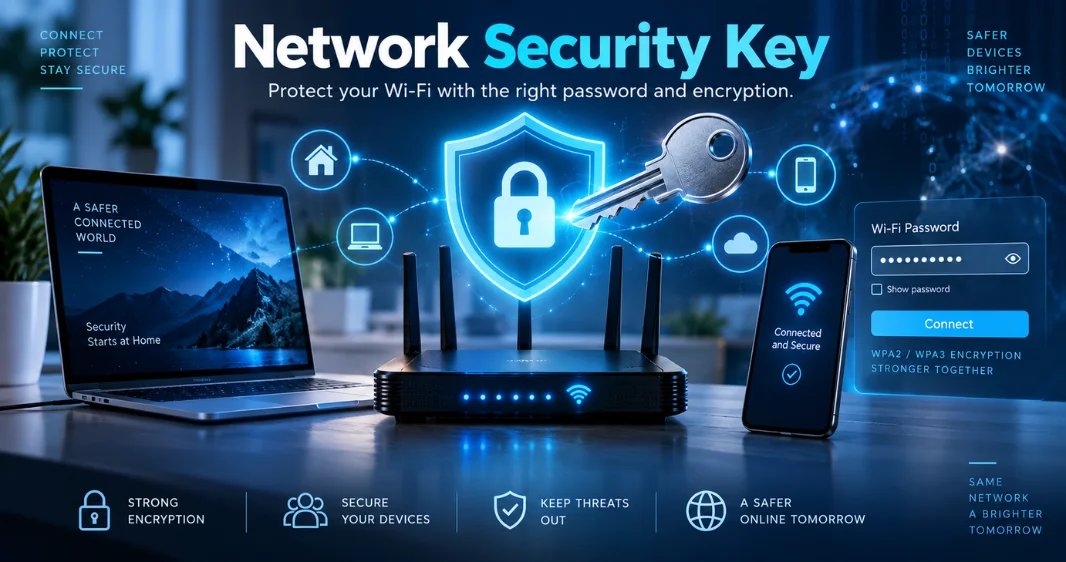
Your laptop asks for a network key, but the router label may show several passwords. That wording confuses people because manufacturers use different names for the same Wi-Fi credential. This guide explains the terms, where to look, why mismatch errors happen, and how to protect your home network.
Short answer: Your network security key is the password a device uses to join a protected Wi-Fi network. You can usually find it on the router label, in the router settings, or on a device that already saved the network. If it fails, check capitalization, the selected network name, saved credentials, and your router’s security mode.
| What you need to know | Quick answer |
|---|---|
| What the key does | Controls access to a protected Wi-Fi network |
| Common names | Wi-Fi password, wireless password, WPA key, passphrase |
| Where to find it | Router label, saved device, router app, or admin settings |
| Recommended security | WPA3 when supported, or WPA2 on compatible equipment |
| Common mismatch causes | Wrong password, wrong network, old saved credentials, compatibility issues |
| Router admin password | Usually separate from the Wi-Fi password |
Key takeaways
- A Wi-Fi security key is usually the same credential you call your Wi-Fi password.
- Your router’s administration password is usually different.
- WPA3 is preferred when your router and devices support it.
- Saved passwords can become outdated after someone changes the router settings.
- Only retrieve or change credentials for networks you own or can manage.
What Does the Wi-Fi Key Actually Do?
The Wi-Fi key proves that your device has permission to join a protected wireless network. The router checks the password before granting access to the network. This helps stop nearby people from connecting without authorization. The password also works with the network’s encryption standard, such as WPA2 or WPA3.
Encryption protects wireless traffic traveling between your device and the router. A strong password matters, but the router’s security mode matters too. Microsoft recommends WPA3 when both the router and computer support it. WPA3 provides newer authentication and stronger protections than older Wi-Fi security methods. WPA2 remains a common option when devices do not support WPA3.
Network Security Key vs. Wi-Fi Password and Router Admin Password
For most home networks, a security key and Wi-Fi password describe the same credential. Windows may display the credential inside a security-key field or call it a Wi-Fi network password. Both labels refer to what you enter when joining protected Wi-Fi. The router administration password has a different purpose.
It signs you into the router’s settings instead of connecting your device to Wi-Fi. Changing one password does not always change the other.
| Credential | Purpose | Where you use it |
|---|---|---|
| Wi-Fi password | Connects a device to wireless internet | Phone, computer, TV, printer |
| Router admin password | Opens router configuration settings | Router app or admin page |
| SSID | Identifies the wireless network | Wi-Fi network list |
| Guest password | Connects visitors to a separate network | Guest devices |
Keeping those credentials separate can improve security and reduce confusion. Do not reuse your email, banking, or social account passwords for your router. A unique password also limits damage if another service suffers a data breach.
Where to Find Your Wi-Fi Key Safely
Only retrieve credentials for a network you own or have permission to manage. Start with the easiest trusted source that already knows the current password. Avoid third-party cracking utilities when built-in recovery options are available.
Check these places in order:
- Router label: Look underneath or behind the router for a Wi-Fi password, wireless key, or WPA password.
- Windows: A connected Windows computer can reveal saved Wi-Fi credentials through its network settings.
- iPhone or iPad: Current Apple devices can display saved Wi-Fi passwords after device authentication.
- Android: Supported Android devices can share saved Wi-Fi details using a QR code.
- Router settings: The official router app or administration interface may show or change the current password.
Windows currently lets users reveal passwords for connected and saved Wi-Fi networks through Settings. Apple also lets supported iPhones and iPads reveal saved wireless passwords. Android’s official guidance provides a QR-based sharing method from network settings. For detailed instructions across each platform, use Technoloss’s Wi-Fi password recovery guide.
It covers Windows, Apple devices, Android, Mac computers, and routers. That guide is the better resource when you need device-specific recovery steps.
Which Wi-Fi Security Type Should Your Router Use?
Modern routers commonly support WPA2, WPA3, or a transition mode supporting compatible devices. Microsoft recommends WPA3 when your router and computer can use it. The FTC also recommends WPA3 or WPA2 encryption for home networks.
| Security type | Current guidance | What to do |
|---|---|---|
| WEP | Outdated and weak | Avoid using it. |
| WPA | Older security standard | Replace when possible. |
| WPA2 | Still widely supported | Use when WPA3 is unavailable. |
| WPA3 | Newer security standard | Prefer when your devices support it. |
Do not downgrade a modern router to WEP to accommodate old equipment. Older devices may lack support for newer wireless security standards. Check whether your router offers a compatible WPA2 or WPA2/WPA3 mode instead. Your router manufacturer can provide the exact options available on your model. Internet providers may also control these settings through their own apps. Make changes carefully because connected devices may need to sign in again.
Why a Security Key Mismatch Happens
A mismatch warning usually means your device and router disagree about the current Wi-Fi credentials. The cause is often simple, such as incorrect capitalization or an old saved password. Older devices can also have trouble with newer wireless security modes.
Try these fixes in order:
- Confirm the network name. Make sure you selected your own SSID rather than a similar nearby network.
- Retype the password carefully. Wi-Fi passwords are case-sensitive, so check capitals, numbers, symbols, and spaces.
- Forget the saved network. Remove its saved profile, then reconnect using the current password.
- Verify the password elsewhere. Check a trusted device that already connects successfully.
- Check compatibility. Update the device, Wi-Fi drivers, and router firmware before changing security settings.
Apple recommends forgetting and rejoining a Wi-Fi network when a device remembers an outdated password. Router support guidance also identifies incorrect credentials as a common cause of mismatch messages. If several devices fail at the same time, the password may not be the only problem. Restart the router and check whether your internet provider reports an outage.
Technoloss’s guide on why your Wi-Fi does not work properly covers signal problems, firmware, drivers, and router settings.
How to Change and Strengthen Your Wi-Fi Password

Change the wireless password through your router’s official app or administration interface. Choose a long, unique passphrase you don’t use for other accounts. Avoid names, addresses, birthdays, or easy patterns that someone nearby could guess. The FTC recommends changing default router administration credentials and enabling available encryption.
It also advises checking the router for software and firmware updates. These steps protect more than the wireless password alone. A practical home setup should include these habits:
- Use WPA3 when all important devices support it.
- Use WPA2 when compatibility prevents WPA3 use.
- Replace the router’s default administration password.
- Install router updates when the manufacturer releases them.
- Give visitors a separate guest network when available.
- Reconnect trusted devices after changing the Wi-Fi password.
A guest network reduces how often you share your main credentials with visitors. Business networks need stronger policies because employees and managed devices create more access points. Technoloss’s article on security awareness tips for businesses covers broader employee and account-security practices.
Store and Share Wi-Fi Credentials Carefully
A password manager is safer than leaving wireless credentials on a visible note. Avoid sending the password through large group chats or shared documents unless you really need to. Remove access when someone no longer needs the network. Copying the password can also leave sensitive information inside a device’s clipboard history.
Clear private clipboard entries after use on shared or managed computers. Technoloss’s clipboard history guide explains how stored copies can expose passwords and other private data. Sharing a QR code can reduce manual typing and accidental disclosure on supported devices. Android can generate a Wi-Fi sharing code from network settings. Apple devices can also share Wi-Fi access with nearby trusted devices.
What to Do Next
First, decide whether you need to recover, troubleshoot, or replace your Wi-Fi credentials. Use built-in device and router tools before installing third-party password utilities. Once everything works, review the security mode and update weak default settings. If you’ve lost the password, start with the Technoloss Wi-Fi password guide.
If the password is correct but the connection still fails, use the Wi-Fi troubleshooting guide. These two paths cover most home connection problems without requiring a factory reset.
Frequently Asked Questions
Is a network security key the same as a Wi-Fi password?
Usually, yes, on a normal home Wi-Fi network. Both terms describe the credential used to join a protected wireless connection. Your router’s administration password is separate and controls configuration settings instead.
Where is the Wi-Fi key printed on a router?
Check the bottom, back, or side of the router for a printed label. It may say Wi-Fi Password, Wireless Key, WPA Key, WLAN Key, or something similar. The printed value may be outdated if someone changed the password after setup.
Can I find the Wi-Fi password on my phone?
Supported iPhones and iPads can display saved Wi-Fi passwords after Face ID, Touch ID, or passcode authentication. Android devices commonly provide a QR code for sharing a saved network. Exact menu names can vary by phone manufacturer and operating system version.
What happens after I change my Wi-Fi password?
Devices using the old password can lose their wireless connection. You will usually need to reconnect each device using the new credentials. Smart televisions, printers, cameras, and home devices are easy to overlook during this process.
Why does the correct password still fail?
First, confirm that another trusted device can connect using the same credentials. Then forget the saved network and reconnect from scratch. If the problem remains, check software updates, router security compatibility, and your router’s current configuration.