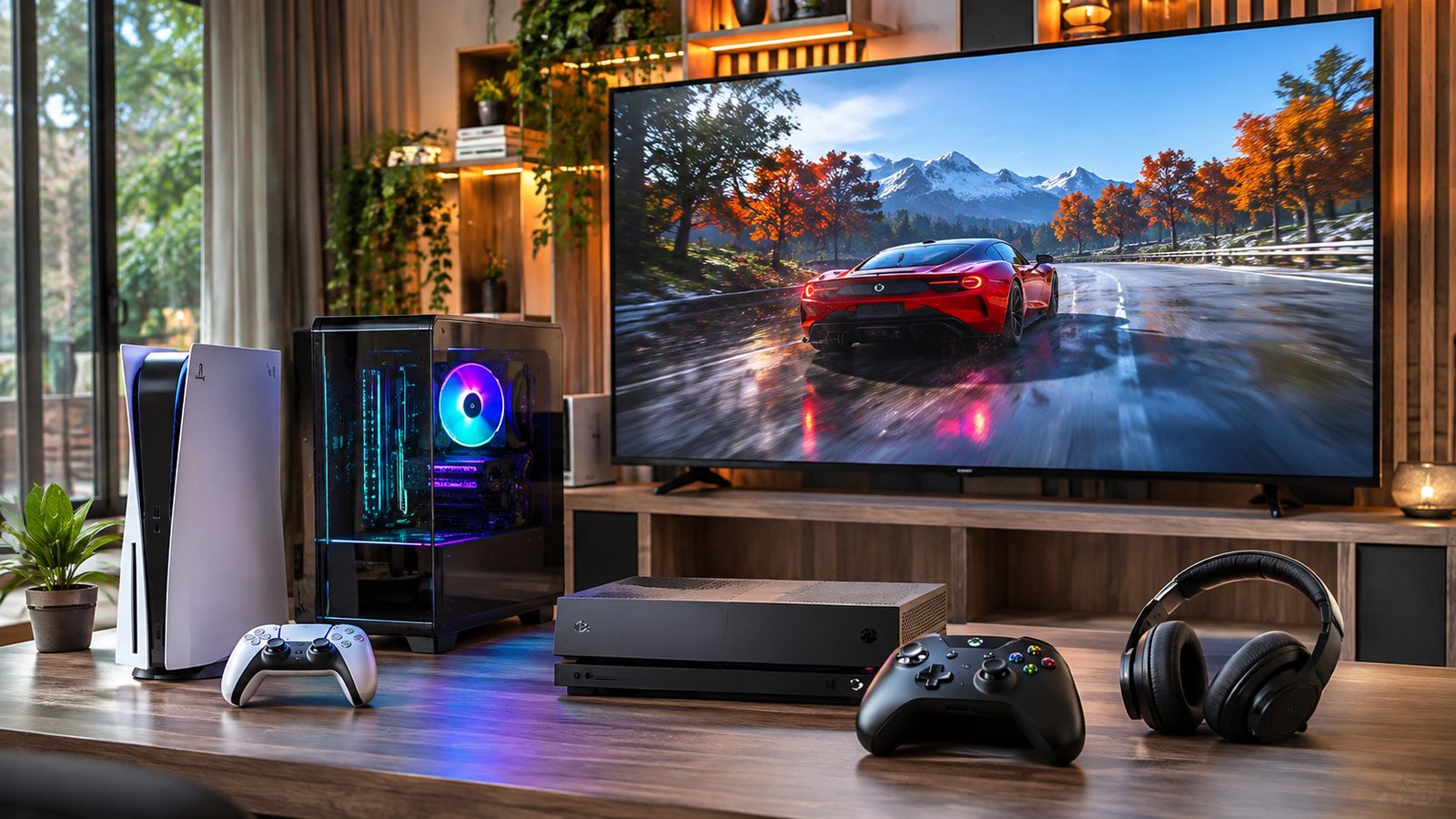
VRR stands for Variable Refresh Rate, a display feature designed mainly to make gaming look smoother. It synchronizes a compatible screen with changing frame rates from a PC or game console. This synchronization helps reduce screen tearing, visible stutter, and uneven motion during gameplay. Quick answer: Variable Refresh Rate lets a compatible monitor or TV change its refresh timing as new frames arrive. Instead of refreshing at one fixed rate, the display follows changing game performance. This can reduce tearing and stutter when frame rates rise or fall during play.
| Key point | What it means |
|---|---|
| Main purpose | Match display refresh timing with changing game frame rates |
| Biggest benefit | Less tearing and visible stutter |
| Common technologies | HDMI Variable Refresh Rate, AMD FreeSync, NVIDIA G-SYNC, VESA Adaptive-Sync |
| Best use | PC and console gaming with fluctuating frame rates |
| Hardware needed | A compatible source, display, connection, and supported settings |
| What it does not do | It does not increase the number of frames your GPU can render |
Key takeaway: Variable refresh technology is most useful when a game’s frame rate changes instead of remaining perfectly stable. It can make those fluctuations look less distracting, but it cannot turn a slow GPU into a faster one. Compatibility, supported refresh range, ports, and settings determine how well the feature works.
What Does VRR Mean and How Does It Work?
A traditional display usually refreshes at a fixed frequency, such as 60Hz, 120Hz, or 144Hz. A game does not always produce frames at that same fixed pace. Complex scenes can take longer for the graphics processor to render. That timing mismatch can produce screen tearing or uneven motion on a fixed-refresh display. Variable refresh technology allows the display to wait for a new frame within its supported range. The screen can then update closer to the moment the frame becomes ready. Imagine a 120Hz display connected to a game fluctuating between 70 and 100 frames per second. A fixed 120Hz refresh cycle cannot perfectly match every new frame. Adaptive refresh timing gives the display more freedom to follow those changes.
Why Variable Refresh Rate Matters for Gaming
Screen tearing appears when a display shows portions of different rendered frames during one refresh. You may notice a horizontal break across moving objects or scenery. Fast camera movement can make the effect particularly easy to see. Variable refresh timing addresses the timing problem rather than hiding the split afterward. The display adjusts within its supported range as frame delivery changes. HDMI Licensing says the technology can reduce tearing, judder, and related interruptions during games. The feature is especially useful in demanding games with inconsistent performance. Open areas, detailed effects, and busy scenes can create sudden frame-rate changes. A synchronized display can make those changes feel less abrupt. It is not a replacement for higher graphics performance, though. A computer producing 45 frames each second still produces about 45 unique frames. Adaptive refresh can improve presentation, but it cannot create missing rendered frames.
Variable Refresh Rate vs. Refresh Rate
Refresh rate describes how many times a display can update its image each second. A 144Hz monitor can perform up to 144 refreshes per second in its normal operating mode. Higher rates can improve motion clarity when enough frames are available. Variable refresh describes whether that update timing can change dynamically. A display might support 144Hz while also operating adaptively across a lower range. Those specifications describe related features, but they are not interchangeable. This distinction matters when buying a gaming monitor or TV. A high maximum refresh rate does not automatically describe its adaptive range or supported formats. Check the complete display specifications instead of relying on the largest Hertz number.
HDMI Variable Refresh Rate, FreeSync, G-SYNC, and Adaptive-Sync
Several technologies solve the same basic synchronization problem. Their implementations, validation requirements, supported connections, and extra features can differ. A compatible badge should therefore be checked against your graphics hardware or console. AMD FreeSync is commonly associated with compatible Radeon hardware and Adaptive-Sync displays. NVIDIA also supports G-SYNC and G-SYNC Compatible displays for synchronized gaming. NVIDIA says its Compatible program validates displays for a baseline variable-refresh experience. HDMI also defines its own variable refresh functionality for supported gaming sources and displays. This implementation matters particularly for televisions and modern game consoles. Connection support can still differ between individual displays and devices. The safest buying approach is to check both sides of your setup. Confirm which format the display accepts and which format the source outputs. Do not assume two products are compatible because both mention adaptive refresh.
What Is a Variable Refresh Range?
Adaptive displays operate within supported minimum and maximum refresh limits. For example, one monitor might work adaptively between 48Hz and 144Hz. Another model could have a wider or narrower operating range. Performance matters because synchronization works best while frame delivery remains inside the effective range. Dropping below the minimum can change how the display behaves. Reaching or exceeding the maximum can also require different frame-management behavior. Many modern displays use Low Framerate Compensation to help below their normal minimum. LFC repeats frames at a suitable multiple to keep the display operating inside an effective range. Availability depends on the display and adaptive-refresh implementation. This is why two 144Hz monitors can behave differently in demanding games. Maximum refresh rate tells only part of the story. The supported adaptive range can be equally important when performance fluctuates.
Variable Refresh Rate vs. V-Sync
V-Sync and adaptive refresh both address frame-display timing, but they approach the problem differently. Traditional V-Sync generally coordinates frame presentation around the display’s fixed refresh schedule. That approach can prevent tearing but may introduce other tradeoffs when performance changes. Adaptive refresh instead changes the screen’s refresh timing to follow frame delivery within a supported range. This can reduce tearing without forcing every frame into one fixed display schedule. The result can feel smoother when frame times vary. The technologies are not always mutually exclusive. Some gaming configurations use synchronization alongside frame limits or V-Sync behavior near the display’s upper boundary. The best settings depend on the game, graphics hardware, display, and driver implementation.
Does PS5 Support Variable Refresh Rate?
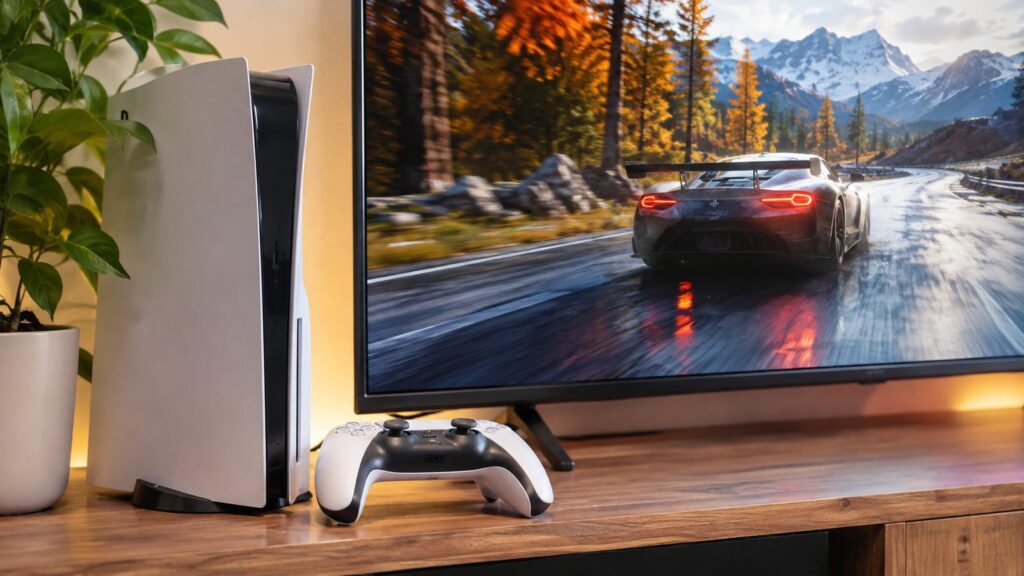
PlayStation 5 supports the feature with compatible HDMI 2.1 televisions and PC monitors. Sony provides controls under Settings, Screen and Video, and Video Output. The console can also show information about the connected display’s capabilities. Sony also provides an “Apply to Unsupported Games” option. The company notes that results can vary depending on the display and game. Users can disable the option if unexpected visual behavior appears. Console owners should still check their television’s input settings. Some models require gaming features to be enabled for a particular HDMI input. The display manual remains the safest source for model-specific instructions.
What About Xbox and PC Gaming?
Xbox consoles and gaming PCs can also use adaptive refresh on compatible hardware. Exact support depends on the display, connection, graphics hardware, and selected video settings. Check the device’s current display menu before assuming the feature is active. PC users have another compatibility layer because graphics vendors provide their own controls. NVIDIA, for example, offers G-SYNC settings through its Control Panel on supported systems. Windows can also show variable-refresh support within Advanced display information. If you do not know your graphics hardware, identify it before changing gaming display settings. TechnoLoss has a dedicated walkthrough for checking the installed graphics processor. How to identify your GPU on TechnoLoss
How to Check Whether Your Setup Supports It
Start with your television or monitor specifications and look for adaptive-refresh support. Then check the supported range, input ports, resolutions, and refresh rates. A feature may work on one input or resolution but not another. Next, verify your source device and graphics hardware. PC users should identify their GPU and use current official software when compatibility problems appear. TechnoLoss explains safer Windows driver updating methods for NVIDIA, AMD, Intel, and other hardware. TechnoLoss driver update guide Finally, inspect the active video settings on the source and display. Windows users can open Settings, System, Display, and Advanced display for relevant information. PlayStation users can inspect their current video output information from the console settings.
When Should You Turn Variable Refresh Rate Off?
Most compatible gaming setups benefit from leaving adaptive refresh enabled. Problems can still appear with particular games, displays, firmware versions, or driver configurations. Flickering is one possible symptom on some combinations. Disable the feature temporarily when troubleshooting unusual flickering, black screens, or visual instability. If the problem disappears, check display firmware and graphics software before enabling it again. Change one setting at a time so you can identify the cause. A temporary graphics problem may also come from Windows rather than the monitor. TechnoLoss covers safe ways to recover a frozen or unstable graphics driver. Reset a graphics driver on TechnoLoss
What to Look for When Buying a Gaming Display
Do not shop using maximum refresh rate alone. Check supported adaptive formats, minimum and maximum range, connection support, resolution, and input behavior. These details determine whether your actual gaming device can use the feature. Console shoppers should pay close attention to HDMI support and the manufacturer’s compatibility information. PC gamers should also check their graphics vendor’s supported-display information. NVIDIA maintains a searchable list of tested G-SYNC and G-SYNC Compatible models. Physical setup still matters after the technical specifications work. Screen position, stand dimensions, desk depth, and monitor weight affect daily comfort. TechnoLoss’s monitor stand guide covers those practical setup considerations. TechnoLoss monitor stand buying guide
Is Variable Refresh Rate Worth Using?
For most gamers with compatible equipment, adaptive refresh is worth enabling. Its benefit becomes clearest when frame rates fluctuate during demanding gameplay. It addresses visible synchronization problems without requiring the display to remain at one fixed timing. The improvement may be less obvious in games that hold a perfectly stable frame rate. It can also matter less for ordinary documents, web browsing, and static desktop work. Gaming remains the main reason to prioritize this feature. Treat it as one part of a balanced display setup. Refresh rate, response behavior, input latency, resolution, image quality, and GPU performance also matter. No single specification determines the entire experience.
Frequently Asked Questions
Is VRR worth it for gaming?
Yes, it can be valuable when your game frame rate changes frequently. It reduces the mismatch between frame delivery and screen refresh timing. The improvement is often easiest to notice during fast motion or demanding scenes.
Does variable refresh rate increase FPS?
No, the display feature does not increase your GPU’s rendering performance. It changes when the screen refreshes to better match incoming frames. A faster graphics card or lower game settings are needed to raise rendering performance.
Is variable refresh rate the same as 120Hz?
No, 120Hz describes a maximum or selected refresh frequency. Adaptive refresh describes the screen’s ability to vary refresh timing dynamically. A display can support both features at the same time.
Does variable refresh rate eliminate all stutter?
No, it cannot fix every cause of stutter. Game-engine problems, asset loading, CPU limits, and severe performance drops can still create uneven motion. The technology mainly addresses synchronization between frame delivery and display timing.
Do I need HDMI 2.1?
It depends on the source, display, resolution, and refresh mode you plan to use. PlayStation 5 specifically uses compatible HDMI 2.1 displays for its supported implementation. PCs can also use adaptive technologies through supported DisplayPort or HDMI configurations.
The Bottom Line
Variable refresh technology is one of the most useful gaming display features when frame rates do not remain constant. It keeps the screen’s update timing closer to the frames produced by your console or computer. That can reduce tearing and make fluctuating performance appear smoother. Before enabling it, confirm support across your source, display, connection, and selected resolution. Pay attention to the supported operating range rather than only the maximum refresh number. Correct compatibility matters more than the badge printed on a product box. If you are troubleshooting a PC setup, begin by identifying your graphics hardware and checking current display settings. Update graphics software only from Windows or an official hardware source. Then test your games again before changing additional settings. —