Need a check mark symbol quickly? You can copy ✓ or ✔ from this page and paste it anywhere. In Microsoft Word, type 2713 and press Alt + X to create ✓.
The commonly listed “check mark Alt code” needs some explanation. A standard Unicode check mark does not behave like traditional Windows numeric Alt codes in every application. The most reliable method depends on whether you use Word, Windows, Excel, a browser, or another program.
Quick answer: For a check mark in Microsoft Word, type 2713 and press Alt + X to get ✓. Type 2714 followed by Alt + X for ✔. For other Windows applications, copying ✓ or using Windows symbol tools is usually more reliable.
Check Mark Codes at a Glance
| Symbol | Name | Unicode | Microsoft Word method | Easy copy |
|---|---|---|---|---|
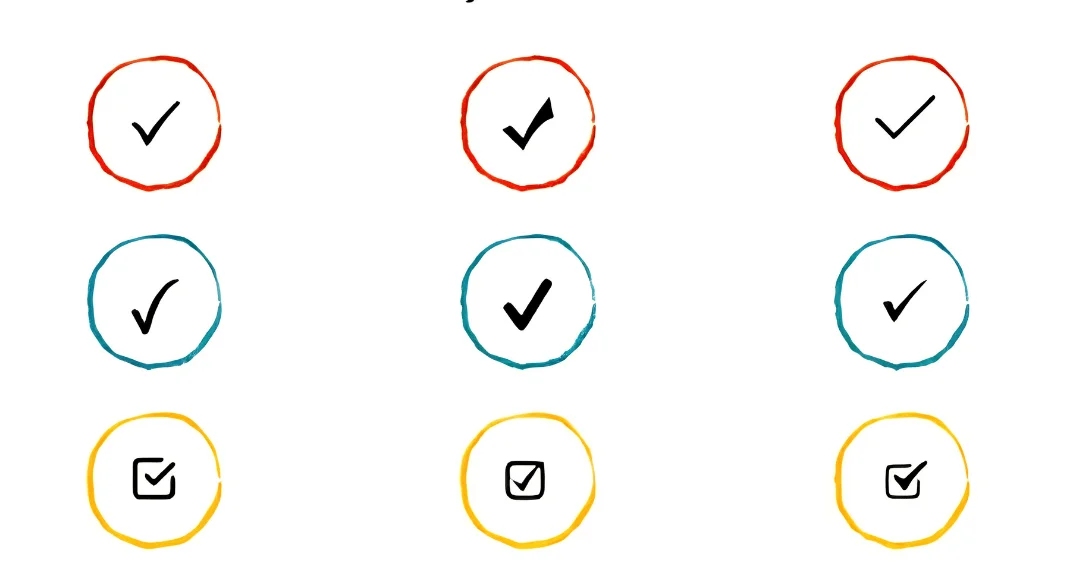
| ✓ | Check Mark | U+2713 | 2713 + Alt + X | ✓ |
| ✔ | Heavy Check Mark | U+2714 | 2714 + Alt + X | ✔ |
| ☑ | Ballot Box With Check | U+2611 | 2611 + Alt + X | ☑ |
| ☐ | Ballot Box | U+2610 | 2610 + Alt + X | ☐ |
| ✅ | Check Mark Button | U+2705 | 2705 + Alt + X | ✅ |
| ✗ | Ballot X | U+2717 | 2717 + Alt + X | ✗ |
Unicode identifies ✓ as CHECK MARK at U+2713. It identifies ✔ separately as a HEAVY CHECK MARK at U+2714.
What Is the Check Mark Alt Code?
Search results often describe Alt + 10003 as the Windows shortcut for ✓. That method can depend on the application, input behavior, and Windows configuration. It should not be treated as a universal Windows shortcut.
Microsoft documents a different and more dependable Unicode method for Word. Type 2713, then press Alt + X, and Word converts the hexadecimal code into ✓.
Traditional Alt codes use the numeric keypad and character sets supported by the application. Unicode contains thousands more characters than those older input systems cover. This difference explains why check mark shortcuts produce conflicting instructions online.
How to Type the Check Mark Alt Code in Microsoft Word
Microsoft Word offers one of the easiest keyboard methods for inserting a real Unicode check mark. You don’t need to change fonts before using the Unicode conversion method. The resulting character can also be copied into many other applications.
- Place your cursor where you want the symbol.
- Type 2713.
- Press Alt + X.
- Word converts the code to ✓.
- For a heavier mark, type 2714 and press Alt + X.
Microsoft says Alt + X converts a Unicode character code into its corresponding symbol. If another character touches the code, select only the code before pressing the shortcut.
This approach is preferable when you want a true Unicode character. It also avoids depending on a special symbol font. The check can remain recognizable when copied into another compatible application.
How to Insert a Check Mark Using Word’s Symbol Menu
You don’t need to remember a keyboard code to insert a tick in Word. Microsoft Office includes a Symbol menu for this purpose. It can also help you browse several check styles.
Open Insert > Symbol > More Symbols in Desktop Word. Select a suitable symbol font and find the mark you want. Microsoft lists Wingdings and Segoe UI Symbol among the available options.
Microsoft lists character codes 2705, 2713, and 2714 when using Segoe UI Symbol. Wingdings also contains check-style glyphs at decimal character codes 252 and 254. Those Wingdings entries depend on the selected font.
That distinction matters when sharing documents with other people. A Unicode ✓ represents the check mark character itself. A font-based technique may rely more heavily on the document retaining its original font.
How to Type a Check Mark on Windows Without Word
Word’s Alt + X method is not a system-wide Windows shortcut. If you’re working in a browser or another application, copying the symbol is often simpler. You can copy ✓, ✔, ☑, or ✅ directly from this article.
Windows also provides built-in tools for inserting symbols. Available choices can vary between Windows versions and applications. Copying a Unicode symbol remains useful when an application lacks a dedicated shortcut.
If you frequently copy symbols, links, or snippets, Windows clipboard history can save time. Press Win + V to access recent copied items after enabling the feature. The TechnoLoss clipboard history guide explains how to use, pin, and clear saved clipboard entries.
Why Alt + 251 Is Not a Check Mark
You may see Alt + 251 recommended as another check mark shortcut. It commonly produces √, which resembles a tick at first glance. However, that character is a mathematical square root symbol.
Unicode assigns ✓ and √ different code points and meanings. The actual check mark is U+2713, while the square root character is U+221A. Unicode’s reference even cross-references the two because users can confuse their appearance.
Use ✓ when you mean approved, completed, correct, or selected. Use √ only when you mean the mathematical radical symbol. This choice also makes copied text clearer to software processing the characters.
Check Mark vs. Heavy Check Mark vs. Checkbox
Several characters can communicate approval or completion, but they are not identical. Choosing the right one helps your document remain consistent. It also prevents an emoji from appearing where you expected plain text.
| Symbol | Best use | Appearance |
|---|---|---|
| ✓ | Documents, tables, notes | Plain check mark |
| ✔ | Headings or emphasized status | Heavier check |
| ☑ | Completed checklist item | Check inside a box. |
| ☐ | Unfinished checklist item | Empty box |
| ✅ | Chats and visual status messages | Emoji-style button |
The plain ✓ usually works best inside regular text. The heavier ✔ attracts more attention in comparison tables and status labels. The green ✅ is an emoji-style character and can look different across platforms.
Microsoft also distinguishes static symbols from interactive checkboxes. A pasted ✓ does not become clickable simply because it looks like a checkbox. Interactive Word forms require checkbox controls instead.
How to Use a Check Mark in Excel
The easiest Excel method is often copying ✓ and pasting it into a cell. This gives you a normal character that can be formatted like other cell content. You can change its size, color, or alignment afterward.
Microsoft also provides the Symbol dialog in desktop Excel. Open Insert > Symbols > Symbol and choose an appropriate check character. Microsoft’s current guidance covers Excel alongside Word, Outlook, and PowerPoint.
If unusual symbols stop displaying correctly after a Windows problem, check your fonts and system configuration. Updating unrelated software should not be your first response. For actual hardware problems, the TechnoLoss Windows driver update guide explains safer troubleshooting steps.
What to Do When the Check Mark Shortcut Does Not Work
First, confirm which shortcut you’re trying to use. 2713, followed by Alt + X, is a Word Unicode conversion method. It should not be expected to work identically inside every Windows program.
Next, make sure you typed the correct hexadecimal code. Try 2713 for ✓ or 2714 for ✔. If surrounding characters interfere, select only those four characters before pressing Alt + X.
A missing or square-shaped symbol can also indicate limited font support. Try a widely supported symbol font when that happens. Microsoft specifically recommends checking the selected font when a Unicode character does not appear as expected.
You can also skip keyboard shortcuts and paste the character directly. Windows clipboard tools make repeated symbols easier to reuse. Browse the TechnoLoss How-to section for more practical Windows and technology instructions.
Which Check Mark Method Should You Use?
Use 2713 plus Alt + X when working in desktop Microsoft Word. It creates the actual Unicode ✓ character and does not require a numeric keypad. The method is easy to remember once you use it regularly.
For occasional use elsewhere, copying and pasting ✓ is usually faster. A symbol menu also makes sense when you need a specific variation. These methods avoid uncertainty around numeric shortcuts that differ between applications.
For documents shared between computers, prefer a real Unicode check mark over a font trick. Unicode defines the character independently of Wingdings. That generally makes the intended character clearer when text moves between compatible systems.
Frequently Asked Questions About Check Mark Alt Code
What is the check mark Alt code?
For Microsoft Word, type 2713 and press Alt + X to insert ✓. This is a Unicode conversion shortcut rather than a traditional numeric-keypad Alt code. Copying ✓ is a reliable alternative in applications that don’t support Word’s shortcut.
What is the Alt code for a heavy check mark?
In Word, type 2714 and then press Alt + X. Word converts that Unicode code into ✔. Unicode officially identifies U+2714 as HEAVY CHECK MARK.
Can I type a check mark without a numeric keypad?
Yes, and Word makes this especially easy. Type 2713 and press Alt + X without using the numeric keypad. You can also copy ✓ and paste it with Ctrl + V.
Why does Alt + 251 give me a different symbol?
Alt + 251 can produce √ instead of ✓. The first character is the mathematical square root symbol, not a check mark. Use the actual Unicode check character when meaning approval or completion.
How do I make a check mark in Word?
Type 2713, then press Alt + X for ✓. You can also open Insert > Symbol and select a check mark. Microsoft’s Symbol menu offers additional styles and fonts.
What is the Unicode for a check mark?
The standard check mark ✓ is Unicode U+2713. The heavy check mark ✔ is U+2714. Unicode lists both characters in its Dingbats block.
Can I copy and paste a check mark?
Yes, copy this symbol: ✓. You can paste it into Word, Excel, browsers, messages, and many other applications. Use ✔ when you want a heavier-looking version.
The Simplest Way to Type a Check Mark
For Word users, remember one combination: type 2713, then press Alt + X. Use 2714 instead when you want the heavier ✔ character. Both methods insert defined Unicode characters rather than look-alike mathematical symbols.
For other applications, copy and paste is often the fastest option. Save ✓ in Windows clipboard history if you use it frequently. That gives you quick access without memorizing conflicting shortcut instructions.