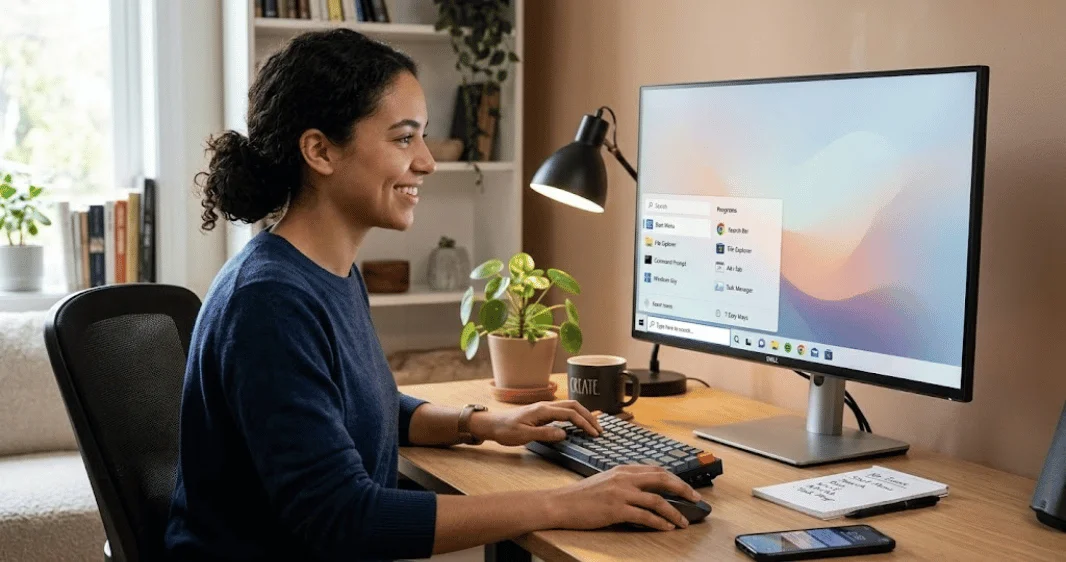
A blank desktop doesn’t mean your installed programs have disappeared. If you’re wondering how do you open a program when there are no icons on the desktop, start with Windows Search. Press the Windows key, type the program’s name, and press Enter to launch it.
You can also use the Start menu, Run box, File Explorer, Task Manager, or the Apps folder. These methods work without a desktop shortcut. You can restore hidden icons afterward if you prefer using them.
Quick answer: Press the Windows key and type the program’s name. Select the matching app or press Enter to open it. You can also press Windows + R to open the Run box or Windows + E to open File Explorer. Missing desktop icons normally don’t mean the program was removed.
Quick Ways to Launch a Program Without a Desktop Icon
| Method | Shortcut or location | Best for |
|---|---|---|
| Windows Search | Windows key or Windows + S | Fastest option for most users |
| Start menu | Start > All | Browsing installed applications |
| Run command | Windows + R | Programs with known commands |
| File Explorer | Windows + E | Finding an executable directly |
| Apps folder | shell: AppsFolder | Viewing installed Windows apps |
| Task Manager | Ctrl + Shift + Esc | When Start or Search has problems |
| Taskbar | Select a pinned app | Programs already pinned there |
The Windows Start menu includes search and an installed-app list. Microsoft also documents Windows + S as a direct shortcut for Windows Search. That makes Search the easiest starting point for most users.
These methods are especially useful after an update or accidental desktop setting change. They also help when you deliberately keep your desktop clean. You don’t need to recreate every shortcut before using your software.
How Do You Open a Program When There Are No Icons on the Desktop?
Try the following methods in order, starting with Windows Search. The first two options require almost no technical knowledge. Later methods provide alternatives when parts of the Windows interface aren’t responding normally.
1. Search for the Program From the Start Menu
Press the Windows key to open Start. Begin typing the application’s name as soon as the menu appears. Windows should display matching apps, files, and settings.
Select the program from the results or press Enter when the correct result is highlighted. Microsoft confirms that you can find programs by typing their names through Start or taskbar Search. This method doesn’t depend on desktop shortcuts.
For example, press the Windows key and type Notepad. Press Enter when Notepad appears in the results. You can use the same process for browsers, office applications, utilities, and many installed programs.
2. Browse the Start Menu’s Installed Apps
Open Start if you don’t remember the program’s exact name. Select All to display the list of installed applications. Browse through the alphabetical list until you find the software you need.
This option helps when Search returns several similar results. It also lets you discover applications you may have forgotten were installed. You can pin frequently used programs afterward for easier access.
Windows 11 places installed programs in the Start menu instead of expecting users to depend on desktop icons. The interface can therefore remain usable with an empty desktop. Microsoft describes the All section as a way to browse installed apps.
3. Press Windows + R and Use the Run Command
Press Windows + R to open the Run dialog. Enter the program’s command or executable name and press Enter. Windows launches it when it recognizes the command.
Several built-in Windows tools have easy Run commands:
- notepad opens Notepad.
- calc opens Calculator.
- mspaint opens Paint.
- cmd opens Command Prompt.
- taskmgr opens Task Manager.
- control opens Control Panel.
- msinfo32 opens System Information.
Run works best when you already know the application’s executable name. Third-party applications don’t always register an easy Run command. Search is usually simpler when you’re unsure.
Windows also accepts special shell commands through Run. For example, Microsoft documents shell:AppsFolder for opening a folder containing installed applications. This provides another useful route when normal shortcuts are missing.
4. Find the Program Through File Explorer
Press Windows + E to open File Explorer. Many traditional desktop applications are installed under C:\Program Files. Some 32-bit software may appear under C:\Program Files (x86) instead.
Open the relevant application folder and find its executable file. Executable program files usually end with .exe. Double-click the correct file to launch the application.
Avoid deleting or moving unfamiliar files inside program folders. Applications often depend on supporting files stored beside the main executable. Use this method mainly to launch software or confirm its installation location.
If you’re learning more Windows shortcuts, TechnoLoss’s clipboard history guide explains another useful keyboard feature. Windows shortcuts can reduce your dependence on desktop icons. They also speed up routine computer tasks.
5. Open the Windows Apps Folder
Press Windows + R, type shell: AppsFolder, and press Enter. Windows opens a folder that displays installed applications. Find the program you want and open it from there.
Microsoft also recommends this folder when creating shortcuts for installed apps. You can right-click an application and choose the shortcut option when available. Windows can then place the new shortcut on your desktop.
This approach is useful when the Start menu feels cluttered. It gives you a dedicated view of applications rather than documents and web results. It can also help locate Microsoft Store apps.
6. Launch a Program From Task Manager
Press Ctrl + Shift + Esc to open Task Manager. Depending on your Windows version, choose Run new task from the available controls. Enter an application’s executable name or full path.
This method becomes useful when Windows Explorer or another interface component is having trouble. IT professionals also use Task Manager during troubleshooting. Most everyday users won’t need it for routine launching.
Don’t enable administrative privileges unless the program or repair task genuinely requires them. Running ordinary applications as an administrator can grant them unnecessary system access. Use the normal launch option whenever possible.
For broader Windows maintenance, see TechnoLoss’s guide to updating Windows drivers safely. Driver problems can cause display or hardware issues, although missing shortcuts alone don’t prove a driver problem. Troubleshoot the simplest causes first.
7. Use a Pinned Taskbar Shortcut
Check the taskbar at the bottom of your screen. A program may already be pinned there even when its desktop shortcut is missing. Select its taskbar icon to launch it.
You can pin an application after finding it through Search. This creates convenient access without adding desktop clutter. It can be a better long-term solution for programs you use every day.
Microsoft supports pinning applications through Windows interface controls. The taskbar remains separate from desktop shortcut visibility. Hiding desktop icons therefore doesn’t normally remove taskbar pins.
What If All the Desktop Icons Suddenly Disappeared?
Your icons may simply be hidden. Right-click an empty part of the desktop, choose View, and make sure Show desktop icons is checked. Microsoft documents this setting for Windows 11 and Windows 10.
If the option was unchecked, selecting it should make existing desktop items visible again. Hiding icons doesn’t delete their underlying shortcuts. It only changes whether Windows displays them on the desktop.
If icons remain missing, open File Explorer and check the Desktop folder. OneDrive can also affect where backed-up Desktop items are stored. Microsoft advises checking the Desktop location when files or shortcuts appear to have moved.
Are Missing Icons the Same as Missing Programs?
No. A desktop icon is commonly a shortcut pointing to an installed application. Deleting or hiding that shortcut doesn’t normally uninstall the underlying program.
Search for the application through Start before reinstalling anything. You can also inspect the installed-app list or its program folder. Consider reinstalling only when Windows no longer shows the application as installed.
This distinction can save time and prevent unnecessary downloads. It can also reduce your exposure to fake download pages. Get replacement installers only from the software publisher or another trusted source.
TechnoLoss’s Software section provides more guidance about applications and software topics. Its How-to section also covers practical computer tasks. These resources can help with related Windows questions.
Windows 11 Versus Windows 10
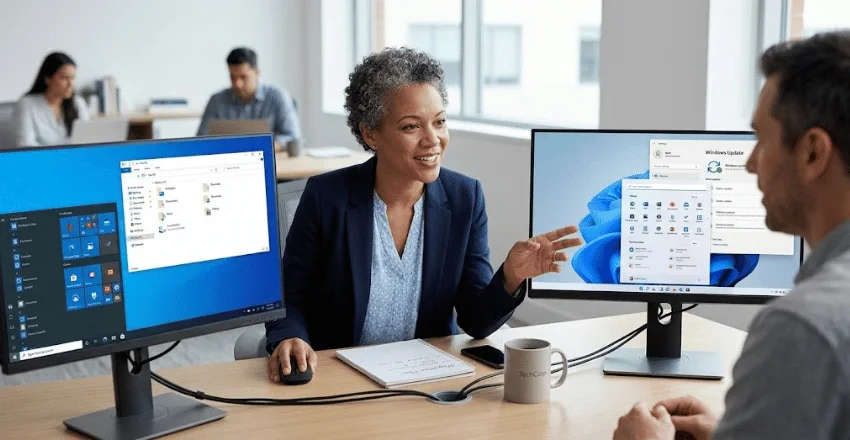
The basic methods remain similar across Windows 11 and Windows 10. Start, Search, Run, File Explorer, and Task Manager all provide ways to access installed applications. Menu positions and wording can differ slightly between versions.
Microsoft ended free Windows 10 support on October 14, 2025. Windows 10 computers can still operate, but Microsoft recommends moving to Windows 11. U.S. users running an older PC should consider that support status when troubleshooting ongoing system problems.
You don’t need to upgrade simply because desktop shortcuts disappeared. First, check the icon visibility setting and launch the program through Search. A missing shortcut is usually an interface issue, not proof of a damaged operating system.
How to Prevent the Problem Next Time
After you find them, pin your most-used programs to the taskbar. This gives you another launch point if desktop shortcuts disappear. You can also pin frequently used applications to Start.
Learn several keyboard shortcuts instead of relying on one interface. Windows + S opens Search, Windows + R opens Run, and Windows + E opens File Explorer. Ctrl + Shift + Esc opens Task Manager directly.
You can also recreate important desktop shortcuts once everything works again. Microsoft allows you to drag suitable applications from Start to the desktop. The shell: AppsFolder method can also help create shortcuts.
Frequently Asked Questions
How do you open a program when there are no icons on the desktop?
Press the Windows key and type the program’s name. Select the application from Search or press Enter when it is highlighted. You can also browse Start > All if you prefer a list.
What is the fastest keyboard method?
Windows Search is usually the easiest option. Press Windows + S, type the application’s name, and press Enter. It requires no desktop shortcut or knowledge of the installation folder.
Can I launch an app without using the mouse?
Yes. Press the Windows key and type the app’s name. Use the arrow keys if needed, then press Enter.
You can also use Windows + R when you know the relevant command. Keyboard-based launching can be useful when a mouse isn’t working properly. It also improves accessibility for some workflows.
Why did my desktop icons disappear?
They may have been hidden through the Desktop View menu. A changed Desktop folder location can also make shortcuts appear missing. Start by checking View > Show desktop icons before attempting advanced repairs.
Does deleting a desktop shortcut uninstall the program?
Normally, no. A shortcut points to an application but isn’t usually the application itself. Search Start or check installed applications to confirm the software remains available.
How can I put the program icon back on my desktop?
Open Start and locate the application first. Microsoft says you can drag supported applications from the installed-app list to create desktop shortcuts. You can also use shell: AppsFolder and choose the shortcut option.
The Easiest Method to Remember
When your desktop is empty, press the Windows key and start typing the program’s name. This works without a desktop shortcut and requires little technical knowledge. Run and File Explorer provide dependable alternatives when Search isn’t enough.
If the disappearance was accidental, right-click the desktop and check View > Show desktop icons. You can then restore shortcuts or pin important apps to the taskbar. Knowing several launch methods keeps an empty desktop from stopping your work.