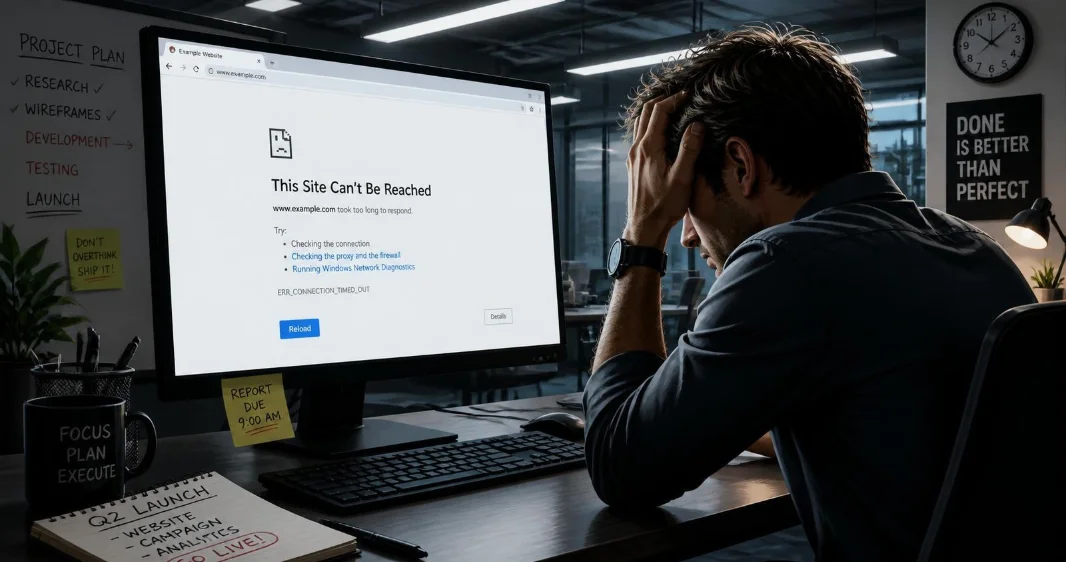
Seeing “this site can’t be reached” in Chrome means the browser could not successfully open the requested website. The problem may involve DNS, your internet connection, Chrome, security software, or the website itself. The error code shown underneath the message usually provides the most useful clue.
You don’t need to change every network setting immediately. Start by reading the error code and checking whether other websites work. Then follow the fixes below in order until you identify the source.
Quick Information Table
| Check | What It Tells You | Recommended Action |
| Chrome error code | Type of connection failure | Match the code to the likely cause |
| Other websites | Whether internet access works | Troubleshoot your connection if all fail |
| Another browser | Whether Chrome is involved | Check Chrome settings and extensions |
| Another device | Whether one device is affected | Troubleshoot that device |
| Mobile data | Whether home Wi-Fi or ISP is involved | Check router, DNS, or ISP |
| Incognito mode | Whether extensions may interfere | Disable extensions individually |
| DNS test | Whether name resolution is failing | Flush or change DNS |
| Website status | Whether the server is unavailable | Wait or contact the site owner |
What Does “This Site Can’t Be Reached” Mean?
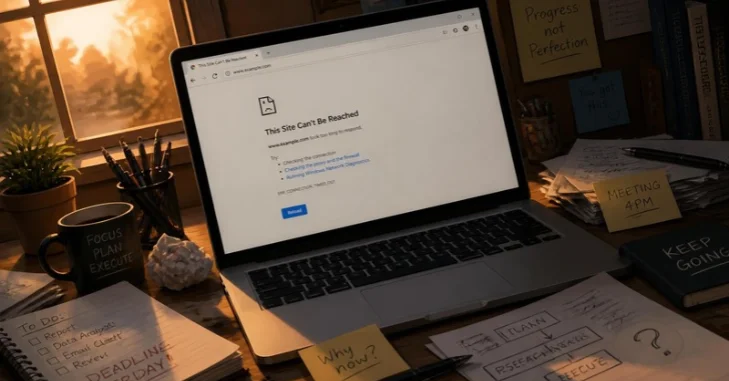
The message means Chrome could not establish the connection needed to load a website. The cause can involve DNS resolution, a timeout, a rejected connection, network changes, or local software. Check the smaller error code beneath the main message before changing settings because different codes require different fixes.
The headline alone does not identify the underlying failure. This Site Can’t Be Reached is used for several types of connection problems. The accompanying code helps narrow your troubleshooting.
For example, ERR_NAME_NOT_RESOLVED points toward a hostname or DNS problem. ERR_CONNECTION_TIMED_OUT means the page took too long to connect. ERR_CONNECTION_REFUSED means the requested page did not allow Chrome to connect.
Common Error Codes and What They Mean
Chrome displays a specific code with many failed connections. Reading that code can save considerable troubleshooting time. Here are several common examples.
| Chrome Error Code | Likely Meaning | Where to Start |
| ERR_NAME_NOT_RESOLVED | Hostname could not be resolved | Check URL and DNS |
| DNS_PROBE_FINISHED_NXDOMAIN | DNS cannot find the domain | Check domain and DNS |
| ERR_CONNECTION_TIMED_OUT | Connection took too long | Check network and server |
| ERR_CONNECTION_REFUSED | Server rejected the connection | Check website or firewall |
| ERR_CONNECTION_RESET | Connection was interrupted | Check VPN, network, or security software |
| ERR_NETWORK_CHANGED | Network changed while loading | Reconnect and reload |
| ERR_INTERNET_DISCONNECTED | Device has no internet connection | Restore internet access |
| ERR_EMPTY_RESPONSE | Website returned no data | Retry and check website status |
The distinction matters because one solution cannot fix every code. A DNS change might help a name-resolution failure but not a down server. Likewise, clearing browser data cannot restore an unavailable website.
How to Fix This Site Can’t Be Reached
Try these nine steps in sequence. Test the affected website after each step. Stop once the page loads normally.
1. Check the Website Address and Error Code
First, inspect the URL for spelling mistakes. A missing letter or incorrect domain ending can send Chrome toward a nonexistent address. Correct the address and reload the page.
Next, copy or note the error code below Chrome’s main message. That code helps distinguish DNS failures from timeouts and rejected connections. Keeping the code also helps if you later contact support.
2. Check Whether Other Websites Open
Open two or three familiar websites in separate tabs. If none load, your device may have lost internet access. Check the Wi-Fi or Ethernet connection before changing Chrome settings.
If other websites work, the problem is more specific. It could involve the affected domain, DNS, browser configuration, or network filtering. Testing another website prevents unnecessary changes to a working connection.
For broader wireless problems, TechnoLoss has a guide to why your Wi-Fi is not working properly covering router restarts, signal strength, firmware, and ISP checks. That guide is useful when the connection itself appears unstable.
3. Test the Website on Another Device or Network
Try the same address on another phone, tablet, or computer. Use the same Wi-Fi connection first. This test shows whether the failure affects one device or the entire network.
Next, disconnect your phone from Wi-Fi and test the page over cellular data. A page that works through cellular service but fails through Wi-Fi points toward the local network, DNS, or ISP path. If it fails everywhere, the website itself deserves closer investigation.
4. Restart Chrome, Your Device, and Router
Close Chrome completely and reopen it. Then restart your computer or mobile device. Temporary network processes can recover after a clean restart.
If the error remains, restart your modem or router using its normal restart procedure. Give the equipment enough time to reconnect before testing again. Avoid a factory reset because it can erase custom network settings.
If you need to reconnect another device afterward, TechnoLoss explains how to find a saved Wi-Fi password on Windows, macOS, iPhone, Android, and routers. Use only networks you own or have permission to access.
5. Try Incognito Mode and Check Extensions
Open a Chrome Incognito window and visit the affected page. Incognito testing can help reveal extension-related problems because extensions may behave differently there. If the site works, inspect your installed extensions.
Disable extensions individually and retest the website after each change. Start with VPN, privacy, filtering, ad-blocking, and security extensions. Removing everything at once makes the responsible extension harder to identify.
You should also make sure Chrome is current. An outdated browser can create compatibility or connection problems. Restart Chrome after installing an available update.
6. Flush the DNS Cache
DNS translates a domain name into the IP address needed to reach its server. Cached DNS information can occasionally become stale or incorrect. Clearing that cache forces the system to request fresh information.
On Windows, open Command Prompt and enter:
ipconfig /flushdns
Press Enter and wait for the confirmation message. Restart Chrome and test the website again. This step is especially relevant for hostname and DNS-related errors.
Chrome and your operating system can handle network information separately. For that reason, a system DNS flush may not solve every browser-specific problem. Continue with the next checks if the error remains.
7. Try a Different DNS Resolver
Your internet provider normally supplies DNS servers automatically. If those servers cannot resolve a domain correctly, testing another reputable resolver can help isolate the problem. Record your current configuration before changing anything.
Cloudflare provides the public IPv4 resolver addresses 1.1.1.1 and 1.0.0.1. Google Public DNS is another commonly used alternative. Change DNS only through your operating system or router’s normal network settings.
After changing the resolver, reopen Chrome and test the page. If nothing changes, DNS may not be the cause. Restore your previous settings if you prefer your original configuration.
8. Check VPN, Proxy, Firewall, and Security Software
A VPN changes the route between your device and the destination. Disconnect your VPN temporarily and reload the website. If the page works afterward, review the VPN server or application settings.
A configured proxy can produce similar connection problems. Check your operating system’s proxy settings and disable any proxy you did not intentionally configure. Managed school and workplace devices may require administrator assistance.
Security software can also inspect or block browser connections. Check whether your firewall or antivirus has blocked Chrome rather than permanently disabling protection. Restore any security feature you temporarily changed after testing.
9. Determine Whether the Website Is Down
A local fix cannot restore a server that is offline. Ask someone on another network to test the page, or use a reputable website-monitoring service. Testing from another network gives you a useful comparison.
If the site fails across unrelated devices and networks, wait before changing more settings. The owner may be dealing with hosting, DNS, configuration, or maintenance problems. Contact the site administrator if the outage continues.
Website owners should check their hosting dashboard, DNS records, web server, firewall, and recent configuration changes. A widespread failure requires server-side investigation. Visitor-side browser resets will not repair an unavailable server.
What If Only One Website Won’t Open?
When every other website loads, avoid assuming your entire internet connection is broken. Test the problem address in another browser and on another network. These comparisons quickly separate device issues from website issues.
A single website may have changed DNS records or experienced a hosting problem. Network filtering can also affect individual domains. The specific Chrome code provides another clue about which explanation fits.
If the website opens in Edge or Firefox but not Chrome, focus on Chrome. Test Incognito mode, extensions, cached data, Secure DNS settings, and browser updates. Avoid resetting your whole network before completing these narrower tests.
What If No Websites Will Load?
Multiple failed websites point toward a broader connection problem. Check whether your device shows a working Wi-Fi or Ethernet connection. Then test another device using the same network.
If every device fails, restart the router and check your ISP for an outage. If only one computer fails, inspect that computer’s network settings. A network adapter or driver issue may also require attention.
Windows users should avoid downloading random driver-updater applications. TechnoLoss explains how to update drivers safely through Windows Update, Device Manager, and official manufacturer sources. Update a network driver when evidence points toward that device.
Should You Clear Chrome’s Cache and Cookies?
Clearing browsing data can help when corrupted local site data causes loading problems. It is more useful after basic connection and DNS tests. It should not be treated as the universal first fix.
Start by clearing data for the affected website when possible. Clearing everything can sign you out of websites and remove stored browser data. Test the page again after the cleanup.
If the error is a DNS failure or server timeout, clearing cookies may do nothing. That is why reading the error code matters. Use the symptom to choose the fix rather than applying every reset available.
When Should You Reset Network Settings?
A network reset is a later troubleshooting step. Consider it when many sites fail and simpler checks have not worked. Restarting, DNS checks, VPN testing, and browser troubleshooting should usually come first.
Network resets can remove saved adapters or customized configurations. Corporate devices may also rely on settings managed by an administrator. Back up or record important network information before making broad changes.
If the computer belongs to an employer or school, contact IT before resetting managed settings. Their policies may intentionally control DNS, proxies, certificates, or network access. Changing those settings yourself can create additional problems.
Get the Website Working Again
Start with the error code instead of making random changes. Check the URL, other websites, another device, and another network first. Those four tests usually reveal which direction your troubleshooting should take.
Then work through browser, DNS, VPN, proxy, and security checks as needed. Save network resets for later because they make broader changes. If the website fails across independent networks, contact its owner or wait for service restoration.
The key is to isolate the failure before trying to repair it. A structured process protects working settings and reduces wasted effort. Once you know whether the problem involves Chrome, your device, the network, or the server, the next action becomes much clearer.
Frequently Asked Questions
Why does Chrome say “this site can’t be reached” when my internet works?
Your internet can work while one website still fails. DNS, browser settings, extensions, VPN routing, network filtering, or the destination server can affect a single site. Test the address on another browser and network to narrow the cause.
The error code under Chrome’s message gives additional information. A timeout means something different from a hostname-resolution failure. Use that code before making broad configuration changes.
Can DNS cause a site not to load?
Yes, DNS problems can prevent a browser from finding the server associated with a domain. Errors such as ERR_NAME_NOT_RESOLVED often point toward name resolution. Checking the address and flushing DNS are sensible early tests.
Changing DNS providers can also help isolate a resolver problem. Keep your previous DNS settings before making the change. Restore them if another resolver does not solve the issue.
Why does a website work on my phone but not my computer?
The computer may have different DNS, browser, VPN, proxy, firewall, or security settings. Test another browser on the computer first. That helps determine whether the issue is specific to Chrome.
Also compare the phone using Wi-Fi and cellular data. Different results can reveal whether the device or network path is responsible. This simple test often saves time.
Does ERR_CONNECTION_TIMED_OUT mean the website is down?
Not necessarily. The code means Chrome waited for the connection but did not receive a response soon enough. The cause can exist on your network path or at the destination.
Test the site through another connection before drawing a conclusion. If unrelated networks also time out, a server-side problem becomes more plausible. Persistent failures should be reported to the website owner.
Is changing DNS safe?
Using a reputable public DNS resolver is a standard troubleshooting option. Record the current DNS configuration before changing it. This makes restoring the original settings straightforward.
Do not change managed network settings without permission. Workplace and school networks may require specific DNS servers. Ask the administrator when the device is managed.